
Brand kit, event identity and booth overrides
Branding sits at three levels and they do not all behave the same way. Two follow your changes, one is copied once and never looks back.
Branding in Logibooth sits at three levels: your business, the event, and
each booth. Most of the time you set it once and never think about it.
When it does go wrong, it is almost always because of something this page
explains: the three levels do not all behave the same way. Some settings
follow your changes forever. Others are copied when the event is created and
never look at your defaults again.
There are two separate chains, not one
This is the thing to understand first, because it explains most surprises.
Who you are is your business name and logo. It runs from your brand kit
down to the event.
What goes on the clips is the intro, overlay, outro and soundtrack. It
runs from the event down to each booth.
They are separate. A booth cannot override your logo, and your brand kit
does not hold an intro video.
Chain one: your name and logo
Set your business name and logo in Profile, then Brand kit. Every
event uses it, and guests see it on download pages and at the Share Station.
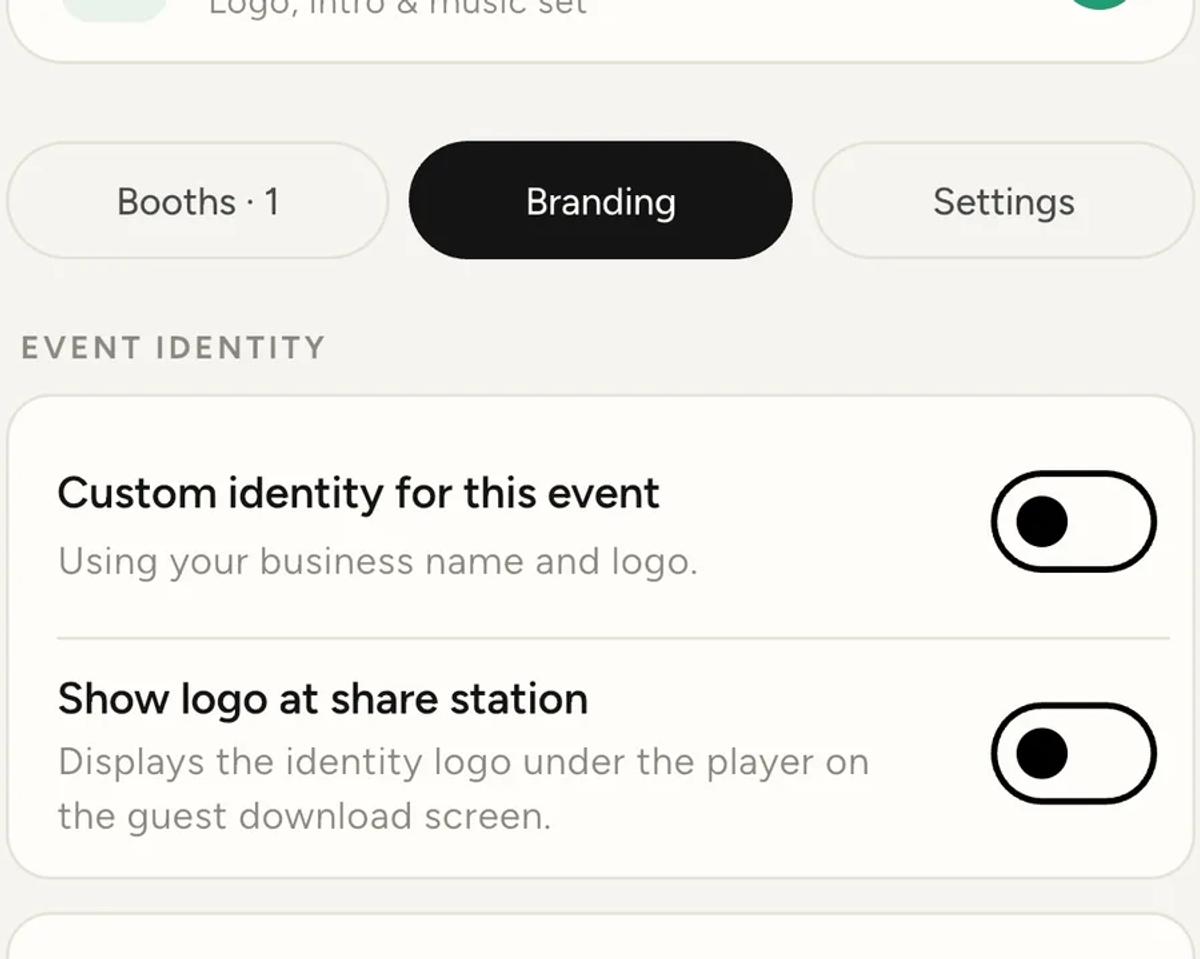
An event can override it. Open the event, tap Branding, and turn on
Custom identity for this event. While it is off, the app tells you what
you are getting.
Use it when you white-label for a venue, or when a client wants their own
name rather than yours on the download page.
Changes to your brand kit reach every event that has not overridden it,
including events already in your calendar.
Chain two: what goes on the clips
Intro, overlay, outro and soundtrack are set on the event's Branding tab
and apply to every booth at that event.
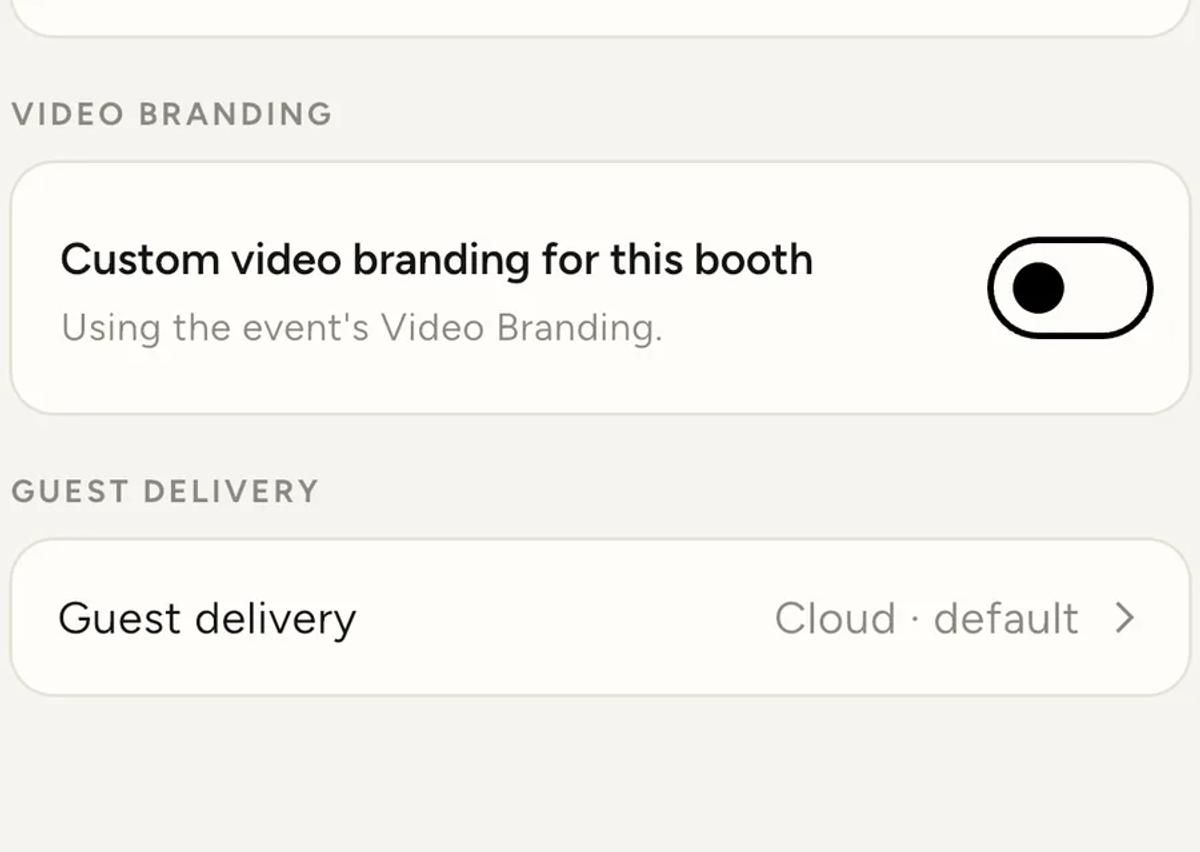
A booth can take over. Open the booth, tap Settings, and turn on Custom
video branding for this booth.
This is the setting most likely to catch you out, for one reason.
A booth override is all or nothing
When you turn on custom branding for a booth, that booth stops using all
of the event's video branding, not just the parts you change.
The booth gets its own four slots, and empty means none. Turn the
override on because you want a different overlay, leave the intro slot
empty, and that booth's clips have no intro at all. It does not fall back to
the event's.
So after switching a booth to custom branding, fill in all four slots, or
deliberately leave one empty knowing it will be absent.
Guest delivery overrides the same way
The same booth screen carries Guest delivery. Left alone it reads "Cloud
· default", meaning it is following the event. Set it explicitly and that
booth goes its own way. There is more in
Cloud or Local.
The Wi-Fi network and password work the same: set on the event, overridable
per booth.
What does not follow your changes
Two things are copied from your defaults when an event is created and
never updated again.
Guest gates. A new event starts with the gates you have set in Profile.
Change your defaults tomorrow and events already created keep what they
copied. This is deliberate: it means editing your defaults cannot silently
change the funnel on a job that is already booked.
Logo placement on videos. The corner and opacity from your brand kit
seed the event's "Logo on videos" setting at creation. After that the event
owns it.
So if you change your gate defaults and wonder why next week's event has not
noticed, that is why. Open the event and change it there.
A short summary
If branding is not appearing
- Check the booth, not just the event. A booth with custom branding on
ignores the event's set completely. - Check the empty slots on that booth. Empty means none, not inherited.
- Check whether you changed a default rather than the event. Gates and
logo placement do not travel backwards into events that already exist. - Check the clip was made after the change. A finished clip keeps the
branding it was rendered with, though anything still in the queue will
pick up what you just set.
Keep reading
Add an overlay to your 360 photobooth videos
An overlay puts artwork on top of every clip your booth makes. Start from a template and edit it in the app, or upload a file of your own. Here is how, and why an overlay sometimes does not appear.
Read more →
Add music to your 360 photobooth videos
A soundtrack plays under every clip from your event. You can pick one track, or pick several and let each clip get a different one at random.
Read more →
Build your own effect
Chain your own sequence of plays, freezes and rewinds against the ten-second take. Here is how the builder thinks, and the one rule that makes boomerangs work.
Read more →