
Cloud or Local, and how guests get their clips
One setting decides whether guests get their video over the internet or straight off your phone. Picking wrong at a venue with no signal means nobody gets a clip.
There is one setting in Logibooth that decides how a guest actually receives
their video. It is called Guest delivery, and it has two values.
The app shows you both words and nothing else.
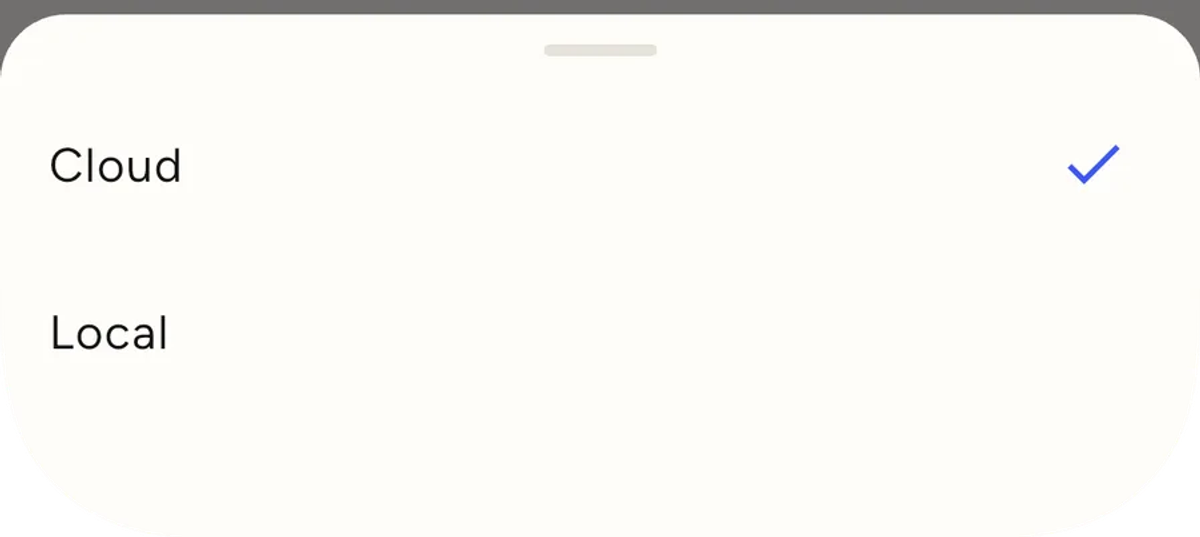
The short version
Cloud means the guest gets a link on the internet. Their video uploads
from your phone, and the QR code points at a page hosted by us. This is the
default and it is right for most venues.
Local means the guest gets the video straight off your phone, over the
venue's wifi. No internet needed. Use it when the venue has no signal, or
when the wifi has no route out to the internet.
Where to find it
- Open the event.
- Tap the Settings tab.
- Under GUEST DELIVERY, tap Default delivery.
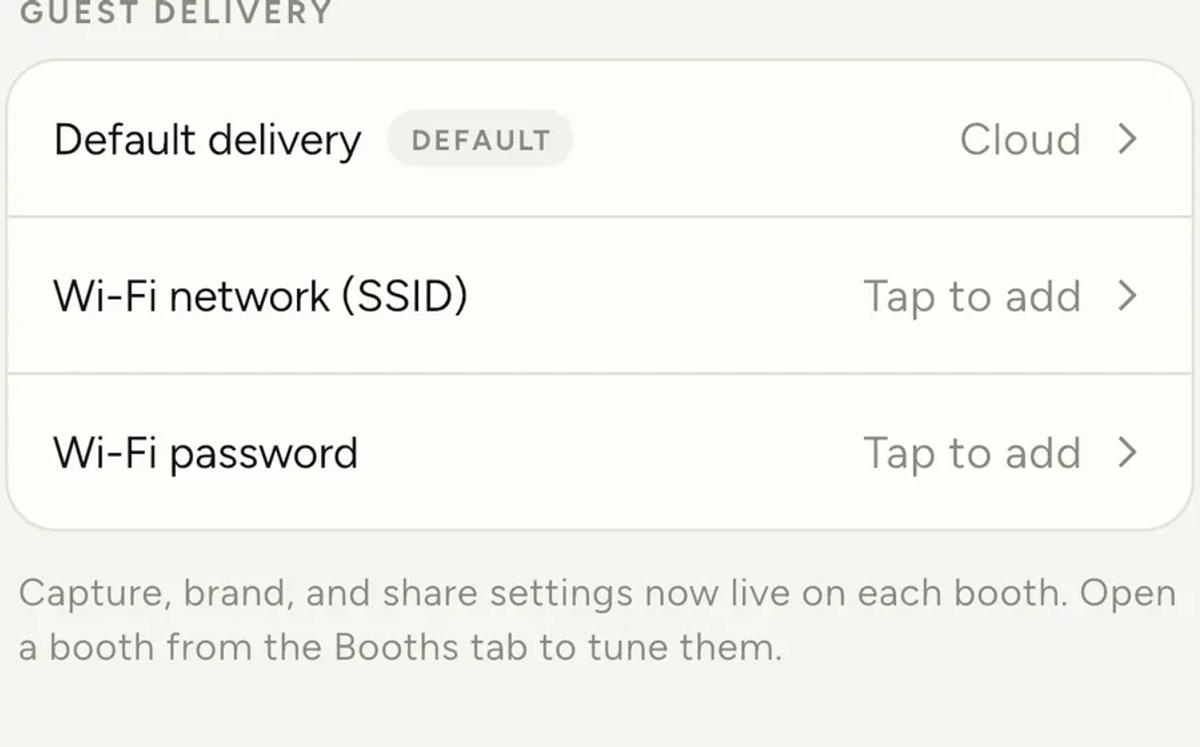
This is the event's default. Each booth can override it in its own
settings, which matters if you run two booths at one venue and only one of
them has a usable connection.
The two Wi-Fi fields underneath are not decoration. They change what a guest
sees at the Share Station, and on a Local event they are the difference
between a guest getting their video and not. There is a section on them
below.
What Cloud actually does
The clip is recorded, processed on the phone, then uploaded. The guest's QR
code and link point at the hosted page.
If you are offline at the moment a clip finishes, the upload is deferred
rather than failed. It goes up when the connection returns. Nothing is lost,
the guest just waits.
What Local actually does
The clip is recorded, processed on the phone, and then served from that
phone over the venue network. The guest scans a QR and downloads from your
device directly.
Two things about Local are important and neither is on screen.
Local never falls back to Cloud. If the local address is not ready yet,
the Share Station shows a "Preparing on local network" state instead of
quietly showing a cloud QR. That is deliberate: at a venue with no internet
a cloud link would be a dead end, so the app would rather make you wait than
hand a guest something broken.
Local clips are not backed up automatically. This is the one that costs
people work.
What the Wi-Fi network and password fields do
On a Local event, the guest has to be on the same network as your phone
before they can download anything. Those two fields are how they get there.
Fill them in and the Share Station shows guests two QR codes instead of
one:
- Join Wi-Fi. Scanning this connects their phone to the network. It is
a standard Wi-Fi QR, the same kind your phone already understands, so
they do not type a password or pick a network from a list. The network
name is printed under it as well. - Get your video. The clip itself, captioned "Scan once you're
connected".
Leave them empty and the station falls back to showing the clip QR on its
own. On a Local event that is a dead end for anyone not already on the
venue network: they scan, their phone tries to reach an address that only
exists on that network, and nothing happens. They will assume the booth is
broken.
So on a Local event, treat the Wi-Fi fields as required even though the app
does not.
A few details worth knowing:
- An open network is fine. Leave the password blank and the QR is built
for a network with no password. - These fields only do anything in Local mode. On a Cloud event the
station shows the single clip QR and ignores them, because the guest does
not need to be on any particular network. - Each booth can have its own. Set them on the event and every booth
inherits them. A booth with its own network set uses that instead, which
is what you want when two booths are in different parts of a venue on
different access points. - Hidden networks will not work from here. The QR is built for a network
that broadcasts its name. - There is a written link under the codes as well, for a guest whose camera
cannot scan.
Local clips stay on the phone until you upload them
A clip made on a Local booth is delivered to the guest and marked ready, and
that is where it stops. It is never sent to the cloud on its own.
You back them up yourself, after the event:
- Open the event and tap the Booths tab.
- Open the booth that recorded them.
- You will see a card reading Served locally, not backed up with a
count. - Tap Upload all while you have a connection.
Until you do that, the only copy of those clips is on that phone. If you
clear storage, lose the device, or reinstall the app, they are gone. There
is no cloud copy to fall back on.
Upload all only covers clips whose file is on the device you are holding.
If a second phone recorded some of them, their count is shown separately, and
you have to open that device to upload those. Clip files live on the phone
that made them.
Which should you pick
Pick Cloud unless you have a reason not to. Clips back themselves up,
guests can open their link days later from anywhere, and you do not have to
remember to do anything after the event.
Pick Local when the venue has no usable internet. Basements, marquees,
older function rooms, and any venue whose wifi is a guest portal that blocks
device to device traffic.
If you are unsure on the day, Cloud is the safer default. A slow upload
still delivers eventually. A Local event you forget to back up does not
recover.
After a Local event, do this before you leave
Back up before you tear down. It takes a minute on the venue wifi or on your
own hotspot, and it is the difference between having the client's clips and
not.
Then check the booth card again. It should read that everything is backed
up rather than showing a count.
Keep reading
Add an overlay to your 360 photobooth videos
An overlay puts artwork on top of every clip your booth makes. Start from a template and edit it in the app, or upload a file of your own. Here is how, and why an overlay sometimes does not appear.
Read more →
Add music to your 360 photobooth videos
A soundtrack plays under every clip from your event. You can pick one track, or pick several and let each clip get a different one at random.
Read more →
Brand kit, event identity and booth overrides
Branding sits at three levels and they do not all behave the same way. Two follow your changes, one is copied once and never looks back.
Read more →