
Delivering the clips to your client
Guests get their own clips on the night. The client wants the whole set. Here is how to check nothing is missing and hand it over.
Guests take their own clips at the booth. The person who booked you usually
wants all of them, and often the contact list too.
Both are a couple of taps, but there is a check worth doing first.
Check nothing is still in flight
Open the event and tap the Guests tab.
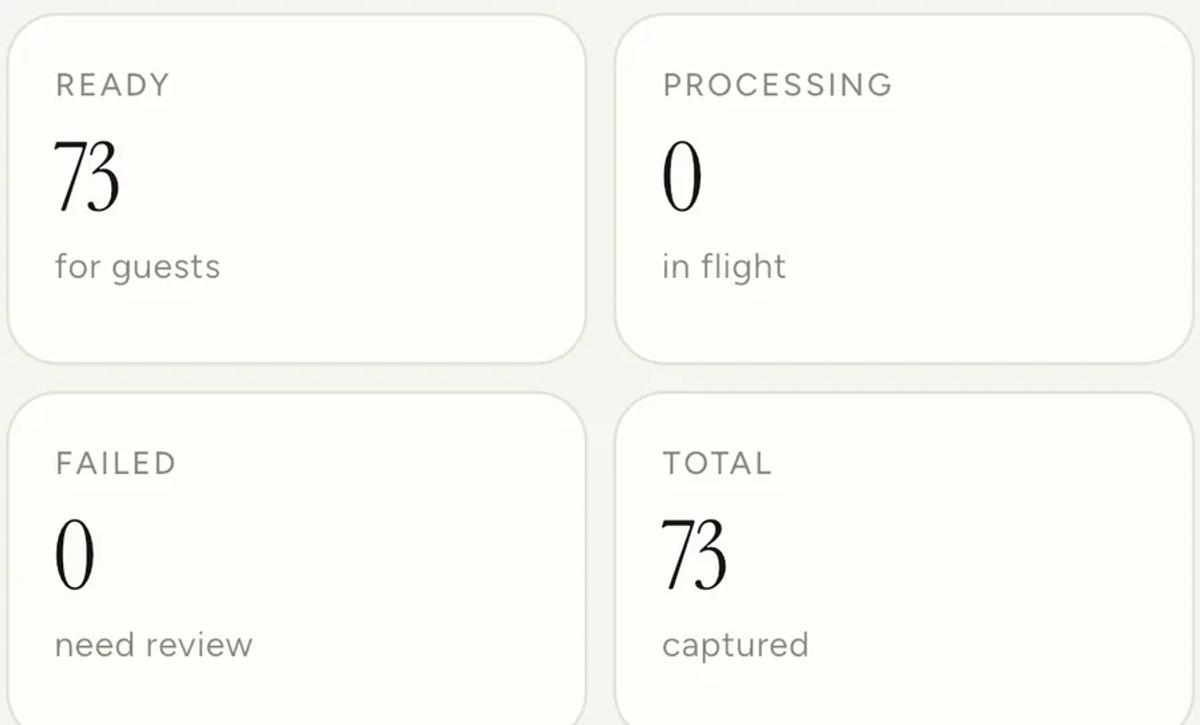
Ready is what a client will receive. Processing should be zero
before you export. Failed is the one to look at: those clips are not in
the export, and they will not appear later on their own.
If Failed is not zero, deal with it before you hand anything over. Failed
clips can often be retried, but only from the device that recorded them,
which is covered in
when a clip cannot be retried from this device.
If the event ran on Local delivery, check the booth as well. Those clips
are not uploaded automatically, so an export from another device will not
find them. See
Cloud or Local.
Export the clips
- Open the event and tap Settings.
- Under EVENT-WIDE ACTIONS, tap Export ZIP.
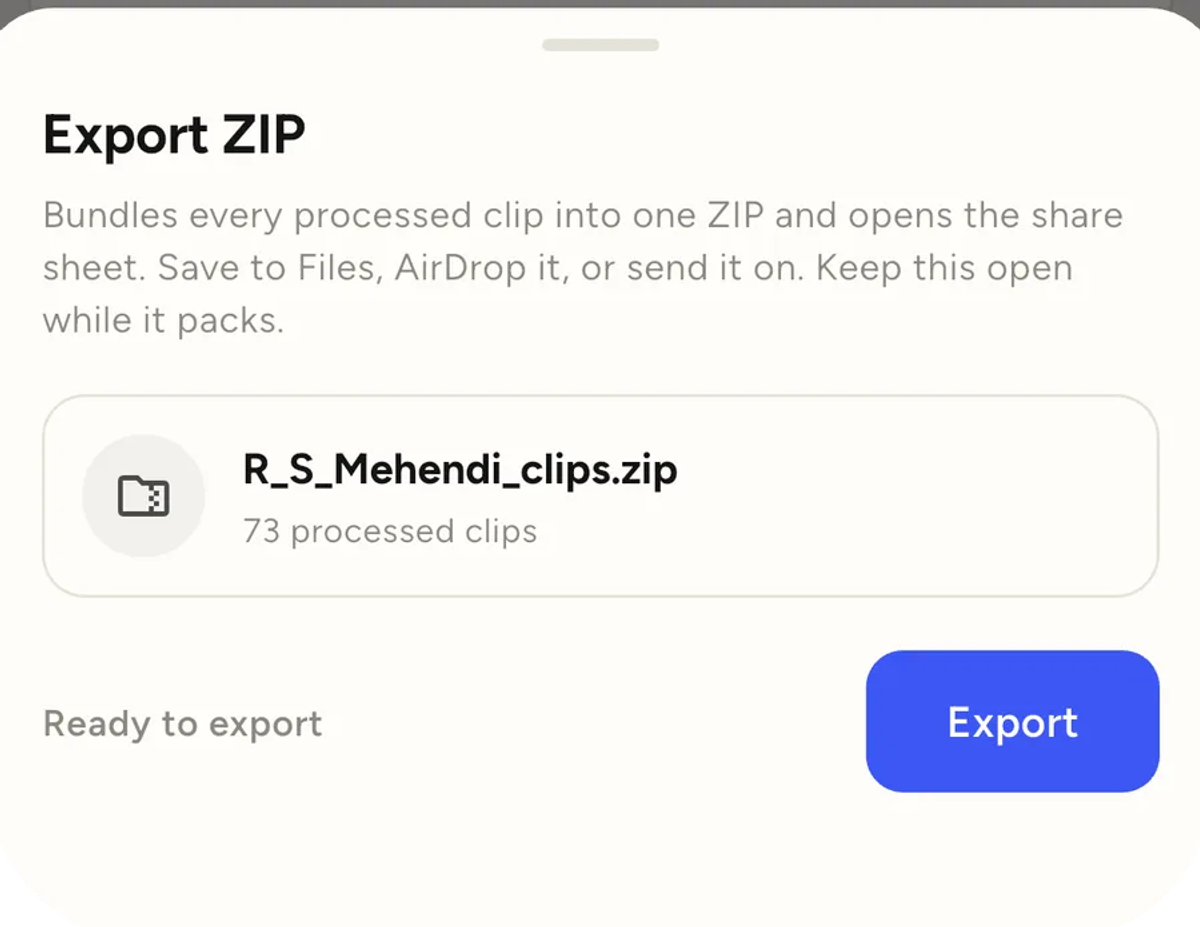
The file is named after the event, so it arrives at the client's end already
labelled. Tap Export and the app packs everything and opens the share
sheet: save to Files, AirDrop it, or send it straight on.
Keep the app open while it packs. For a big event this takes a while,
and any clips that live only in the cloud are downloaded first, so do it on
decent wifi rather than at the venue.
If your Pro subscription has lapsed, clips from that period are not included
until you restore it.
Send the contact list too, if you collected one
If you ran a contact gate, those details are worth handing over or keeping,
depending on what you agreed with the client.
Open Profile, then Guest gates, and use Export leads CSV. You
pick which event to export from, and it produces a spreadsheet you can open
anywhere.
Do this reasonably soon. Guest contact details are deleted automatically
fourteen days after the event, which the event's own Settings screen tells
you. That is a privacy feature, not a bug, and it means the app is not
long-term storage for a mailing list. Export what you want to keep into your
own system.
What the client actually wants
Worth thinking about rather than defaulting to a ZIP of 200 files.
A couple usually wants a handful they can post, not the full set. Send
the ZIP, but send three or four good ones separately as well.
A brand or venue usually does want everything, and often the contact
list, because that was the point of the activation.
Either way, the promo reel is a good thing to attach. It takes a minute to
build and it shows the night at its best. See
make a promo reel.
Do not clear storage until this is done
The storage screen offers to free space by removing recordings and renders.
Once clips are delivered that is safe and worth doing.
Before they are delivered it is the fastest way to lose an event. Export
first, confirm the client has it, then clear.
Keep reading
Add an overlay to your 360 photobooth videos
An overlay puts artwork on top of every clip your booth makes. Start from a template and edit it in the app, or upload a file of your own. Here is how, and why an overlay sometimes does not appear.
Read more →
Add music to your 360 photobooth videos
A soundtrack plays under every clip from your event. You can pick one track, or pick several and let each clip get a different one at random.
Read more →
Brand kit, event identity and booth overrides
Branding sits at three levels and they do not all behave the same way. Two follow your changes, one is copied once and never looks back.
Read more →