
Add an intro to your 360 photobooth videos
An intro plays at the start of every clip from your event. Here is the file you need, how to trim it while you add it, and why it works on every plan.
An intro is a short video that plays at the start of every clip your booth
makes. Most operators use it for the couple's names and the date, or for
their own logo animation.
It becomes the first frame of every clip, so it is the first thing a guest
sees when their video opens and the first thing anyone sees when that video
gets shared.
The file you need
- A video matching your booth's clip shape. 1080 x 1920 for portrait,
1920 x 1080 for landscape. - Under 15 MB.
Nothing in the app limits how long an intro runs, only how big the file is.
That does not mean long is fine. The intro plays before the guest sees
themselves, so every extra second is a second they spend waiting at the
booth. Two or three seconds is plenty.
Clip shape is a per-booth setting with a default on the event, so check the
booth you are running before you export. Portrait is the default.
The shape matters because the clip adapts to the booth and your branding does
not. When the two disagree the intro is scaled to fill the frame and the
overflow is cut off, so a portrait intro in a landscape clip loses its sides
and a landscape one in a portrait clip loses its top and bottom. Nothing
warns you, and it happens on every clip of the event.
Add it to your event
- Open the app and tap Projects.
- Tap the event you want to brand.
- Tap the Branding tab.
- Under VIDEO BRANDING, tap Intro video.
- Pick your video.
The row only offers videos, so anything you saved as an image will not
appear here. That is the overlay row instead.
Trim it while you add it
When you pick a video, iOS shows a Choose Video screen with a filmstrip
along the top. Drag either end to trim, then tap Choose. Only the part
you kept is sent to the app.
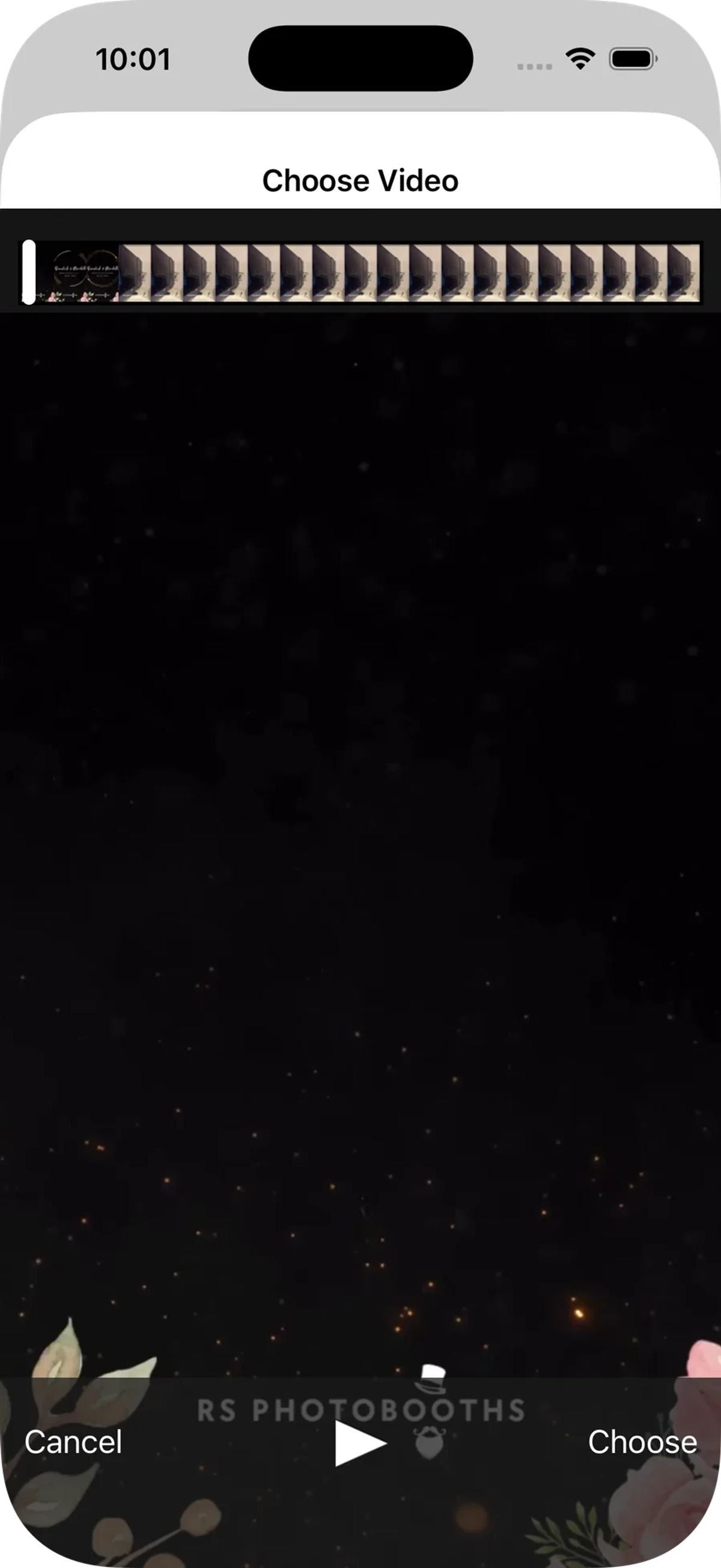
This is the easiest way to cut a long video down. You do not need a video
editor, and you do not need to save a second copy to your phone.
Wait for it to upload
The row shows Uploading with a percentage while the file goes up. Let it
finish before you leave the screen.
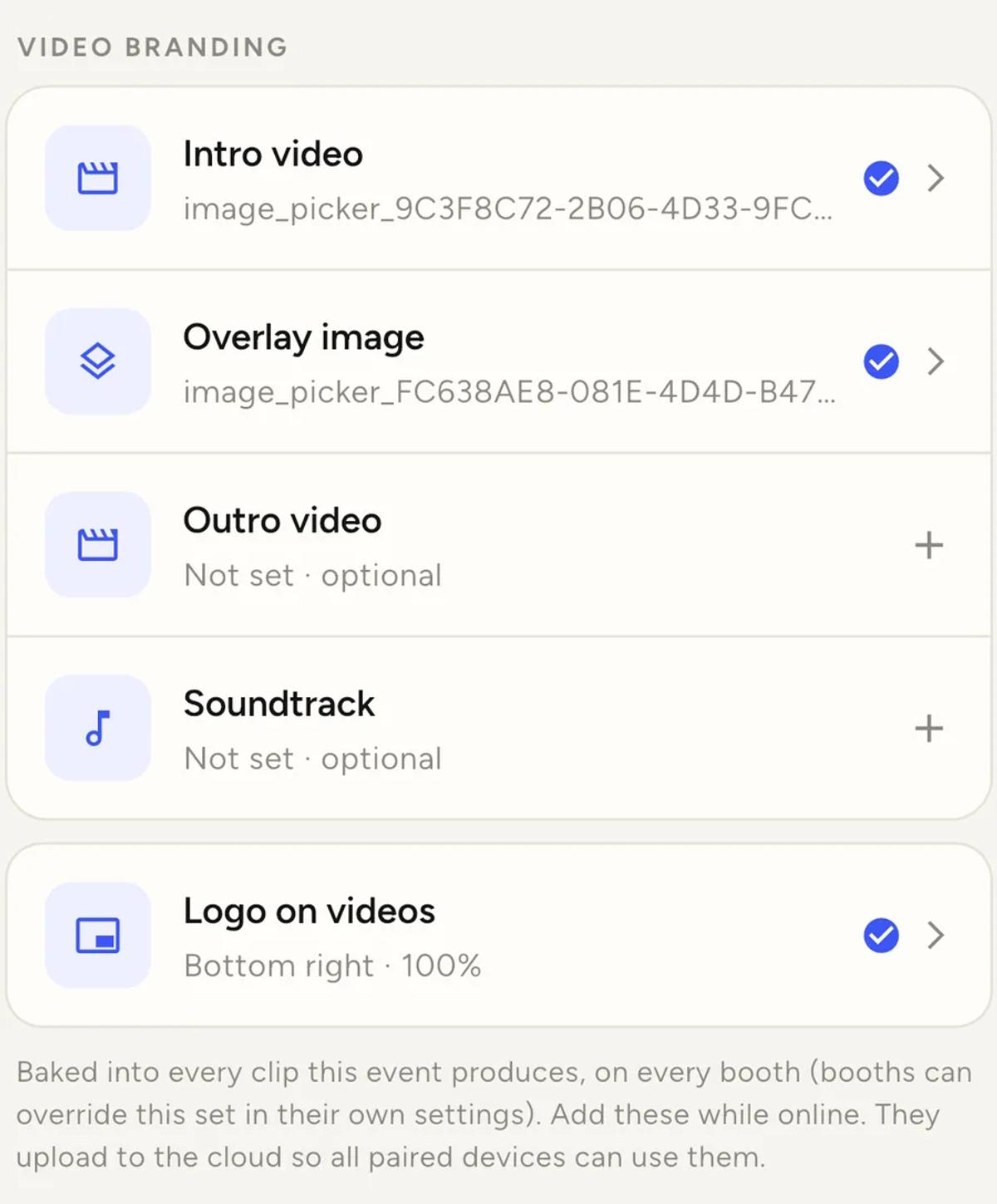
The upload matters because your other devices need the file. If you run a
recorder phone and a separate Share Station, they all pull branding from the
cloud. Add branding at a venue with no connection and the other devices will
not have it.
When it finishes, the row shows a blue tick.
Tap the row again to preview it, replace it, or remove it.
It works on every plan
An intro is not a Pro feature. Neither is an outro or a soundtrack. They all
play on free accounts exactly as they do on Pro.
Pro changes one thing only, which is whose brand is on the clips. On a free
account clips carry the Logibooth watermark instead of your overlay artwork
and logo. Your intro still plays.
One intro per event, unless a booth overrides it
The intro you set on the Branding tab plays on every clip that event
produces, across every booth.
A booth can override it in its own settings, which is useful when you run
two booths at one venue and each needs its own opening.
If your intro does not play
- Check the shape against the booth. The file has to match that
booth's clip shape. A mismatch is scaled to fill and cropped, not
letterboxed, so the loss is easy to miss. - Check the upload finished. If you left the screen early, the row will
not show a blue tick. - Check the booth. If that booth has its own intro set, it is using
that one, not the event's. - Check when you added it. Clips that have already finished processing
keep the branding they were made with. Clips still in the queue are fine,
because the app reads your branding again at processing time.
Keep reading
Add an overlay to your 360 photobooth videos
An overlay puts artwork on top of every clip your booth makes. Start from a template and edit it in the app, or upload a file of your own. Here is how, and why an overlay sometimes does not appear.
Read more →
Add music to your 360 photobooth videos
A soundtrack plays under every clip from your event. You can pick one track, or pick several and let each clip get a different one at random.
Read more →
Brand kit, event identity and booth overrides
Branding sits at three levels and they do not all behave the same way. Two follow your changes, one is copied once and never looks back.
Read more →