
Getting more reviews from your events
The review prompt is the last thing a guest sees before their download. Here is how to set it up, and why we recommend leaving it skippable.
A review from someone who has just had a good time is worth more than one
chased by email three weeks later. The Review prompt gate asks at the
best possible moment: right at the end, just before the download.
Set it up
- Open Profile, then Guest gates.
- Toggle Review prompt on.
- Tap Edit link and paste your review URL.
For Google, that is the short link from your Business Profile, which looks
like https://g.page/r/your-listing/review and opens straight into the
review box. The Knot and similar listings work the same way.
As with the other gates, an empty link means guests never see it.
It runs last, on purpose
The review prompt is the final gate before the download. That ordering is
deliberate: the guest has been through everything else and is one tap from
their clip, which is the moment they are most willing to do you a favour.
What the guest sees
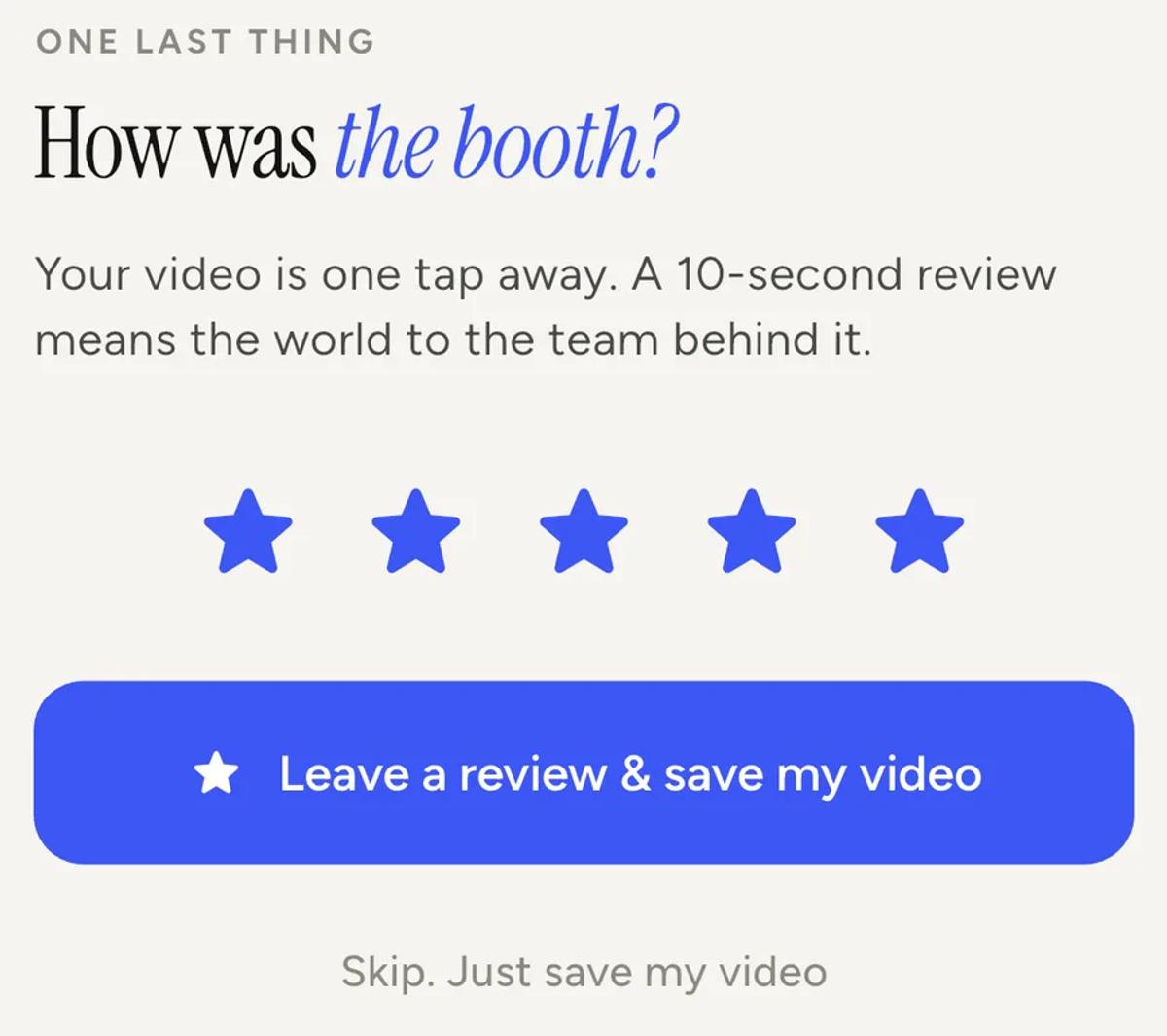
Worth being clear about one thing, because other booth software does it
differently. The stars here are decoration. There is no rating step that
sends happy guests to Google and unhappy ones to a private form. Every guest
gets the same link, and skipping still saves their video.
Leave it skippable
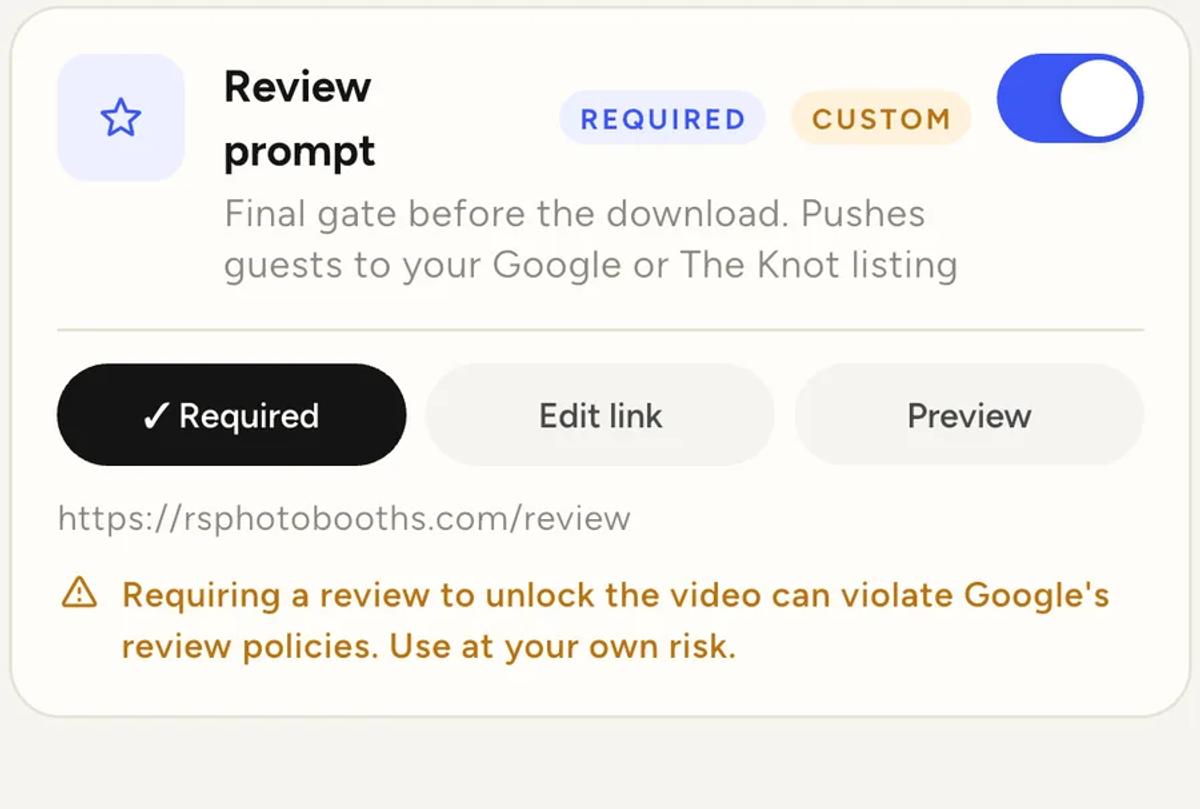
The gate has a required switch, and the app itself warns you when you turn
it on: requiring a review to unlock a video can violate Google's review
policies.
We would go further and recommend leaving it optional, for three reasons.
It can cost you the listing. Review platforms take a dim view of
reviews obtained by making something conditional. The risk is not a
telling-off, it is your listing.
Forced reviews are bad reviews. A guest made to leave one to get their
own video is not in a generous mood by the time they are typing.
It does not work anyway. An optional prompt at the right moment already
converts well, because you are asking someone who is happy. Adding a lock
does not make them happier.
Ask, and let them say no. That is also the only version of this we will
help you build.
Test it before the event
You do not have to guess what guests will see. Open the event, tap the
Guests tab, then Preview guest flow.
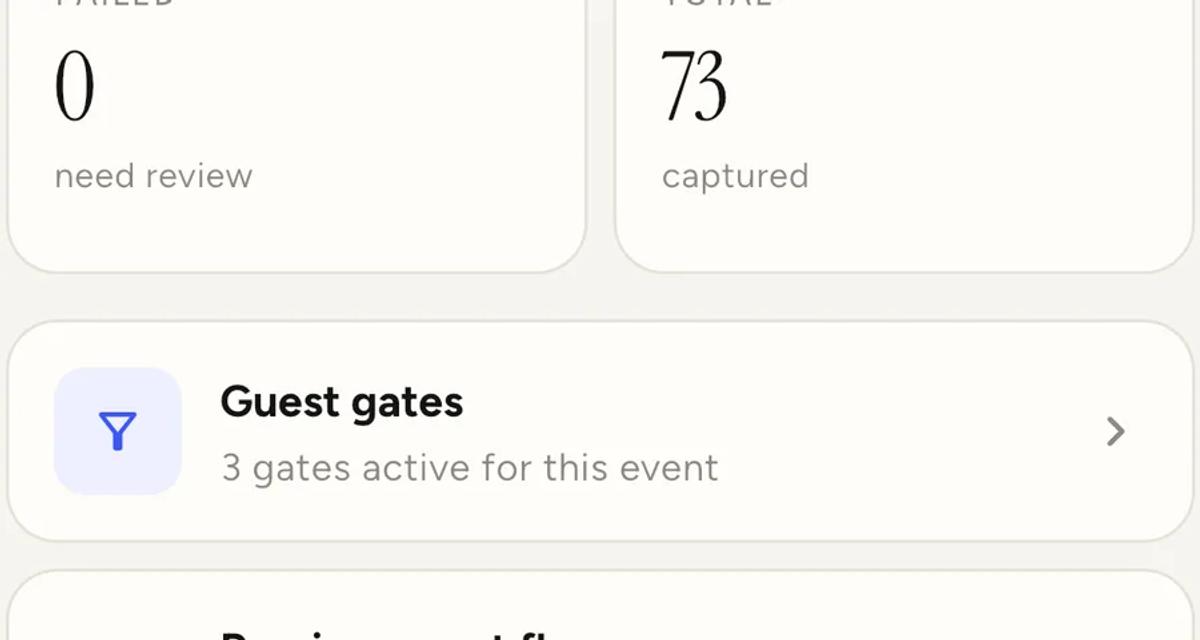
It walks you through the gates in order, exactly as a guest gets them, and
nothing you type is saved. It lists the gates first, so you can see the
order and whether each one is skippable before you start.
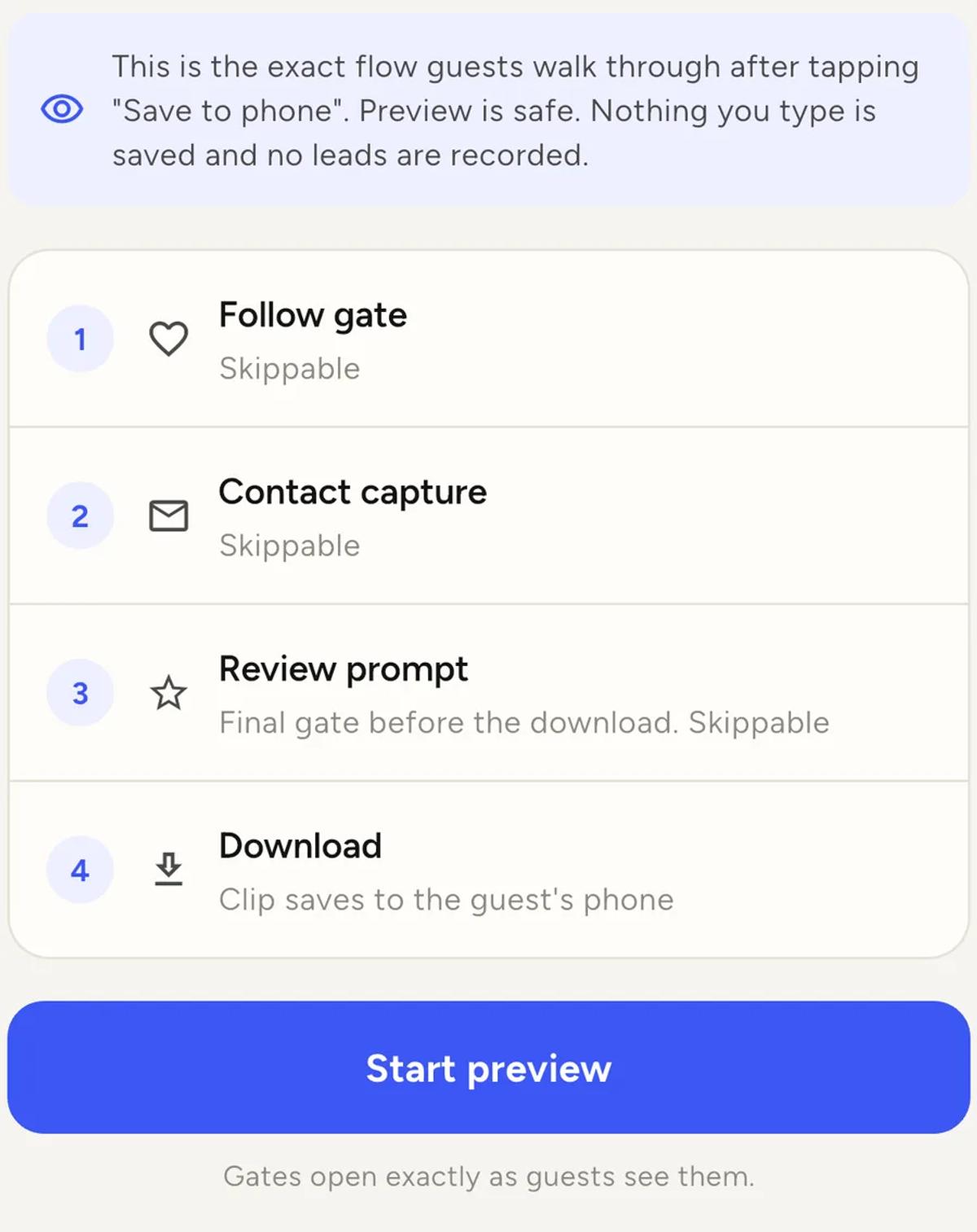
Run it once after you change anything. It is the fastest way to catch a gate
that is silently skipped because its link is missing.
At a venue with no internet
The prompt still appears, and it never blocks the download: the clip is
released whether or not the review page opens. On a local connection the app
skips opening the page entirely, because an offline phone cannot load it and
sending the guest there would only strand them away from their download.
So an offline event will not earn you reviews. Worth knowing when you are
choosing which events to push for them.
What actually moves the number
The prompt puts your listing in front of every guest. What decides whether
they write anything is the night itself: whether the queue moved, whether
the clips looked good, whether someone was friendly.
The gate is the ask. The event is the reason.
Keep reading
Add an overlay to your 360 photobooth videos
An overlay puts artwork on top of every clip your booth makes. Start from a template and edit it in the app, or upload a file of your own. Here is how, and why an overlay sometimes does not appear.
Read more →
Add music to your 360 photobooth videos
A soundtrack plays under every clip from your event. You can pick one track, or pick several and let each clip get a different one at random.
Read more →
Brand kit, event identity and booth overrides
Branding sits at three levels and they do not all behave the same way. Two follow your changes, one is copied once and never looks back.
Read more →