
Get more social follows from your booth
The follow gate asks guests to follow you before they download. Here is how to set it up, and an honest account of what it can and cannot make happen.
Every guest who uses your booth ends up on your screen, holding their phone,
about to receive something they are pleased with. The Social follow gate
asks them to follow your account at that moment.
Add your link first
Like the contact gates, this one is skipped silently while its link is
empty. Guests never see it and you never find out.
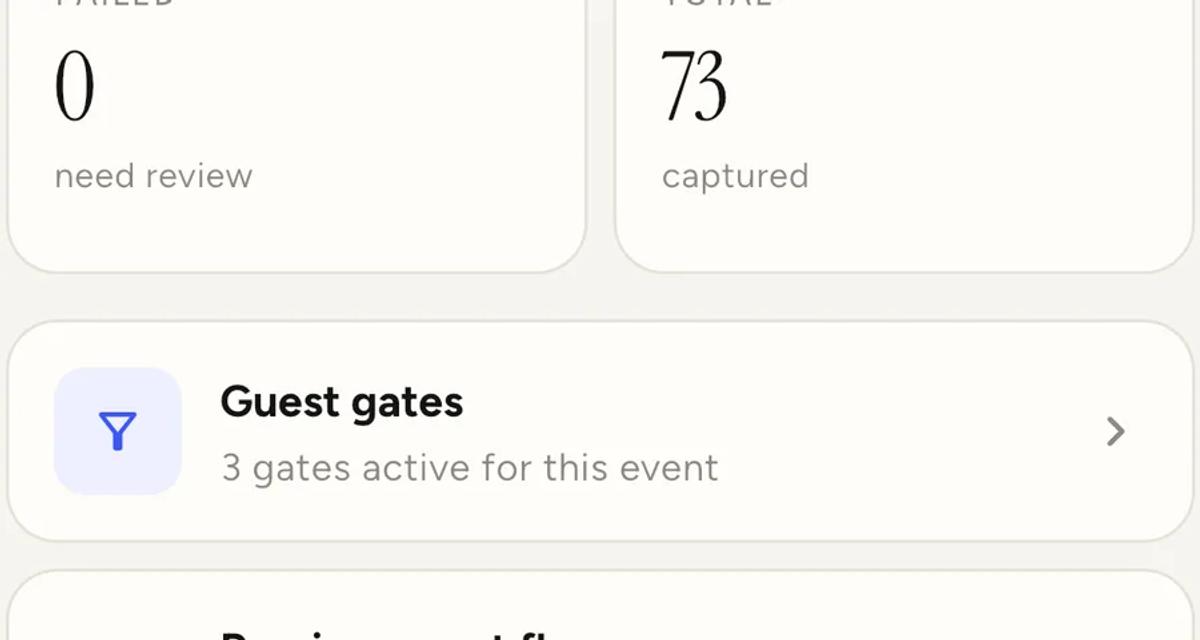
- Open Profile, then Guest gates.
- Toggle Social follow on.
- Tap Edit link and paste your profile URL, for example
https://instagram.com/your-handle.
It has to start with http:// or https://. Pick the one account you
actually post to. A guest will follow one thing at a booth, not three.
What actually happens
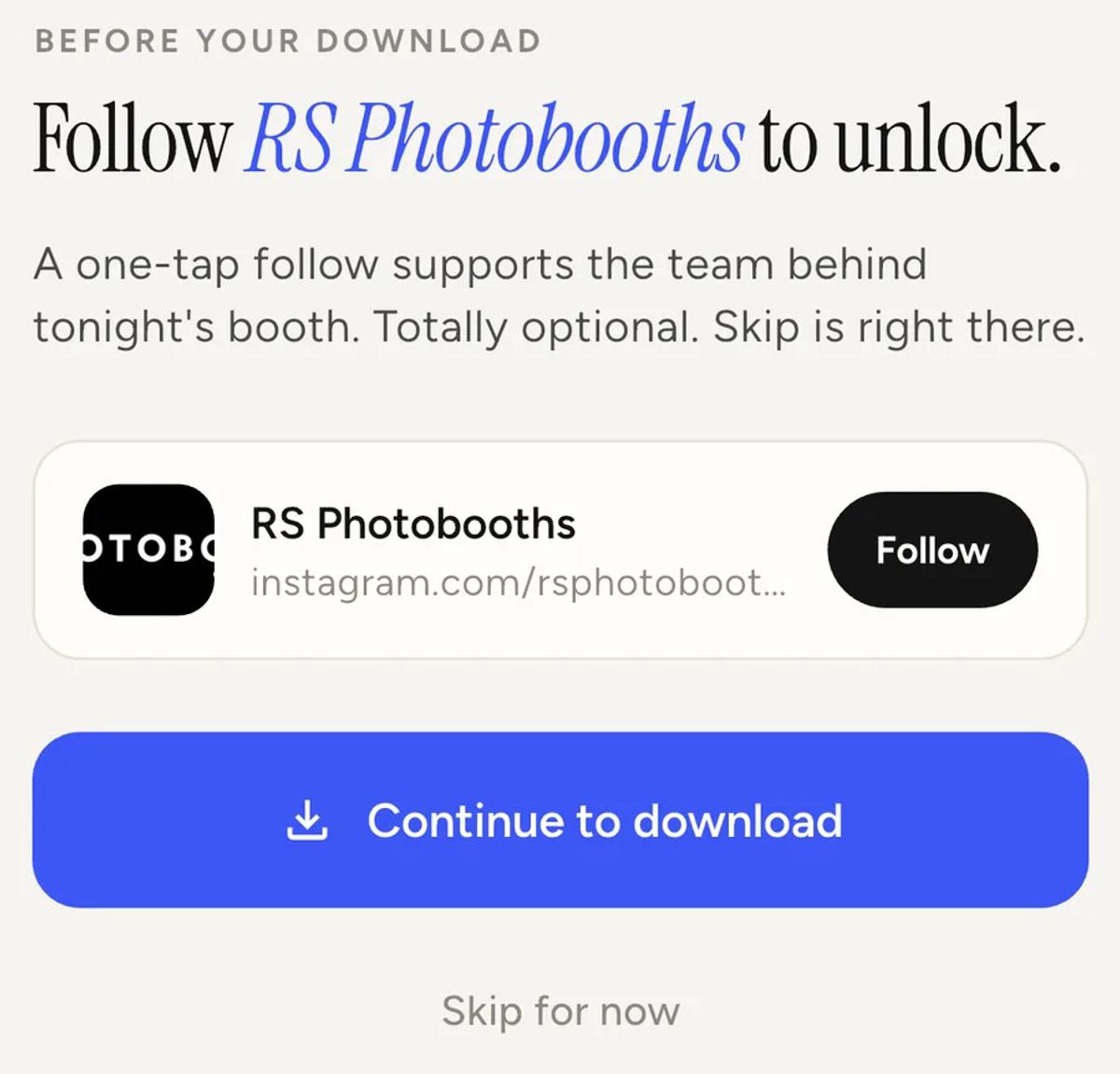
The guest sees the ask before their download. Tapping Follow opens your
profile page, and their download unlocks straight after.
Here is the honest part. The app cannot check whether anyone followed
you. There is no way for it to. Opening your profile is the closest thing
available, so that is what unlocks the download.
That means a required follow gate does not guarantee a follower. It
guarantees your profile got opened. Some of those people follow, some look
and leave, and some tap through without reading. Treat it as putting your
profile in front of every guest, which is worth plenty on its own, and not
as a follower counter.
Required or optional
Optional shows the ask with a skip link.
Required keeps the download locked until they tap Follow.
Because the gate cannot verify a real follow, required mostly buys you the
tap rather than the follower. It also costs goodwill with the guest who
wanted their video and got a hurdle. Optional is the reasonable default.
Make the ask worth saying yes to
The gate is one line of copy in front of someone who has just enjoyed
themselves. What works is asking plainly and giving a reason that is about
them, not you: more clips from tonight go up on that account, and following
is how they see the rest.
That is also true, which matters, because guests can tell.
Test it before the event
You do not have to guess what guests will see. Open the event, tap the
Guests tab, then Preview guest flow.
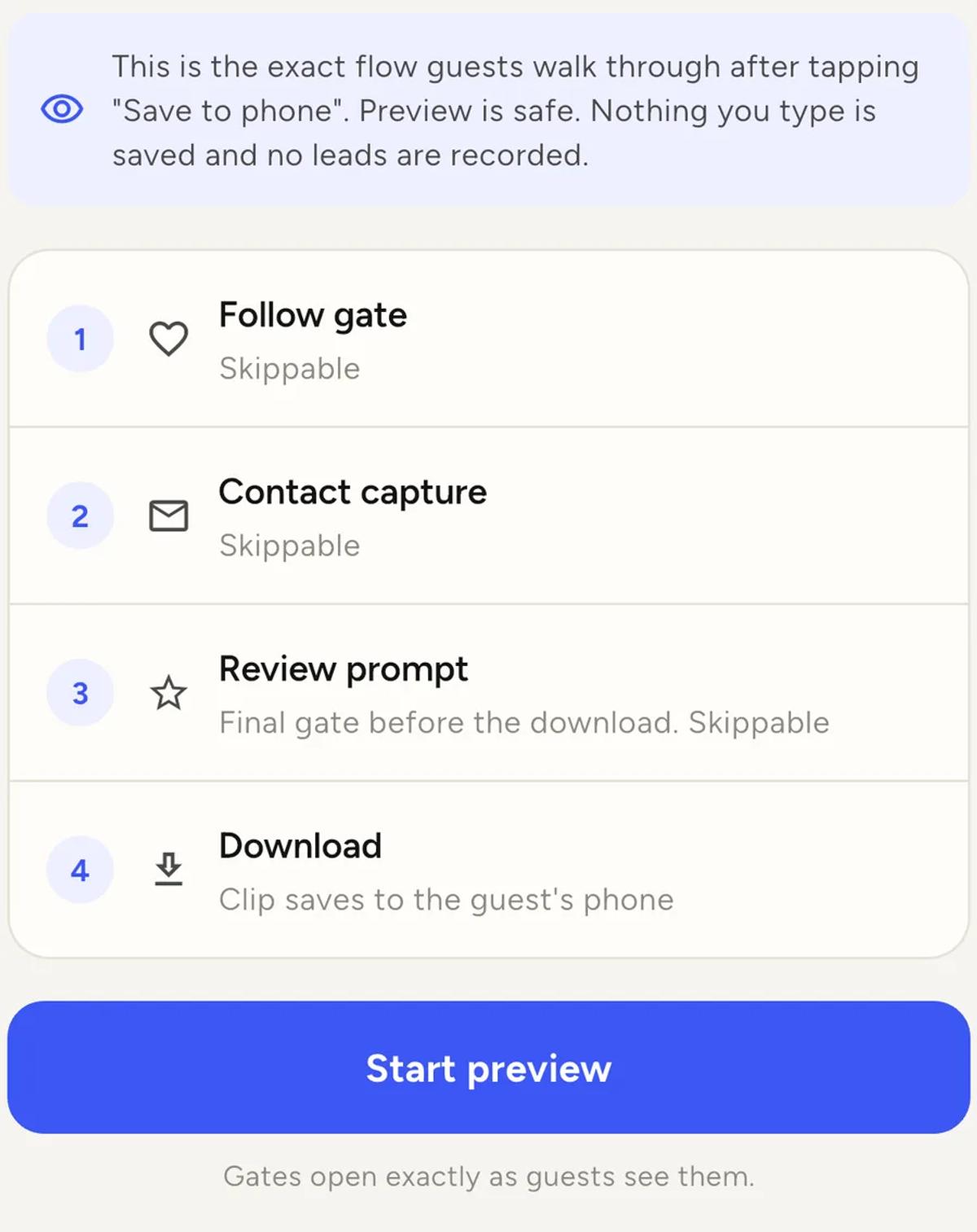
It walks you through the gates in order, exactly as a guest gets them, and
nothing you type is saved. It lists the gates first, so you can see the
order and whether each one is skippable before you start.
Run it once after you change anything. It is the fastest way to catch a gate
that is silently skipped because its link is missing.
At a venue with no internet
The gate still appears, and Continue still works, but the link to Instagram
may not open at all. Nobody gets stuck, and nobody follows you either.
If social is a priority for a particular event, that is one more reason to
check the venue's connection before the night.
Keep reading
Add an overlay to your 360 photobooth videos
An overlay puts artwork on top of every clip your booth makes. Start from a template and edit it in the app, or upload a file of your own. Here is how, and why an overlay sometimes does not appear.
Read more →
Add music to your 360 photobooth videos
A soundtrack plays under every clip from your event. You can pick one track, or pick several and let each clip get a different one at random.
Read more →
Brand kit, event identity and booth overrides
Branding sits at three levels and they do not all behave the same way. Two follow your changes, one is copied once and never looks back.
Read more →