
When a clip cannot be retried from this device
Some failed clips can be retried where you are standing and some cannot. Here is how to tell which is which, and what to do about the ones that cannot.
If you run more than one phone at an event, you will eventually see a group
of failed clips labelled Can't retry here, with a note that they were
recorded on another device.
It reads like a bug. It is not. It is a consequence of where the video file
actually lives, and once you know that, the fix is obvious.
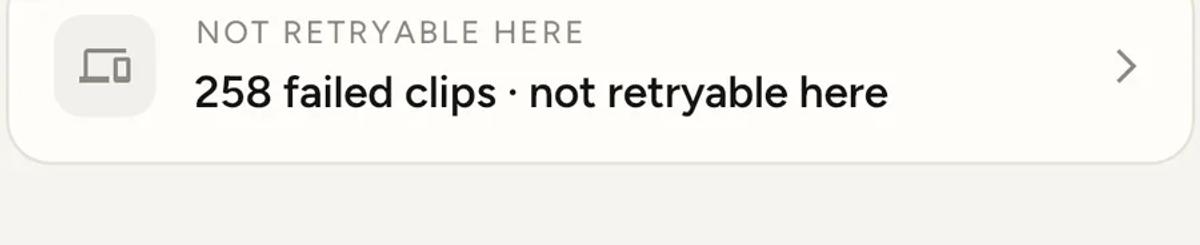
You will usually meet it on the home screen first, as a count of clips that
cannot be retried where you are.
The queue has four groups
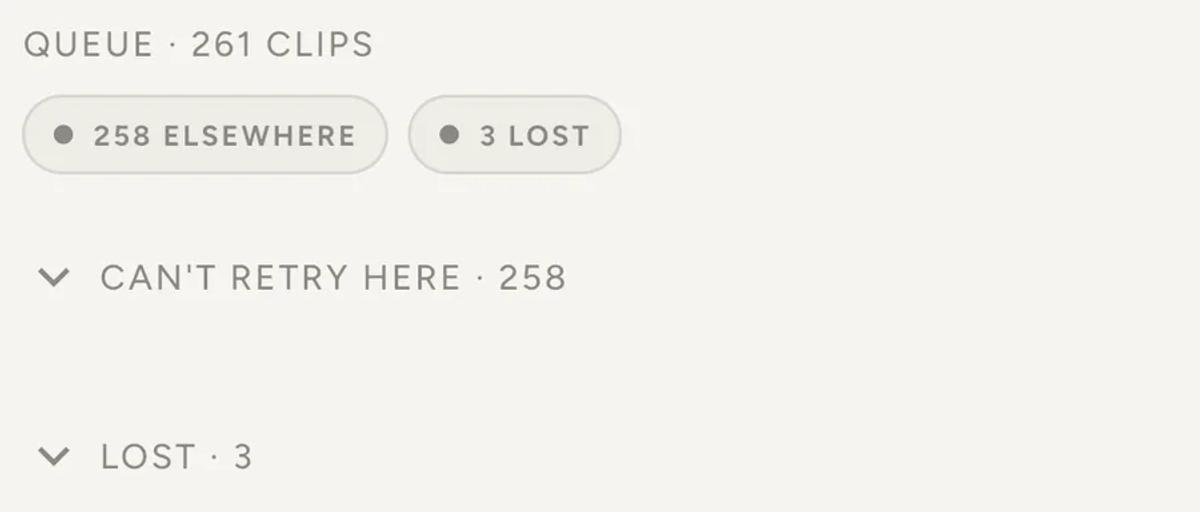
In progress. Being processed or uploaded right now. Leave them.
Needs attention. Failed, and this device can restart them. These have a
Retry button, and a Retry all appears once there are two or more.
Can't retry here. Failed, and this device cannot restart them.
Lost. Given up on, and cleared from the attention counts.
Why a clip cannot be retried here
Retrying is not "try the upload again". It re-runs the render, and that
needs the original recording, which is a file on a phone's storage.
Two things have to be true for a retry to work: this device recorded the
clip, and the original file is still on this device. If either is
false, there is nothing here to re-render from.
So a clip lands in Can't retry here for one of two reasons.
A different phone recorded it. The clip appears everywhere, because the
record of it lives in your account. The video file does not. It is sitting
on the phone that made it, and only that phone can re-run the job.
This phone recorded it, but the file is gone. Cleared storage,
reinstalled the app, or the working files were purged. The record survives
and the source does not.
Open the group and the app tells you which of the two it is, per clip. A
clip recorded here whose file has gone says so directly: "Original file no
longer on this device".
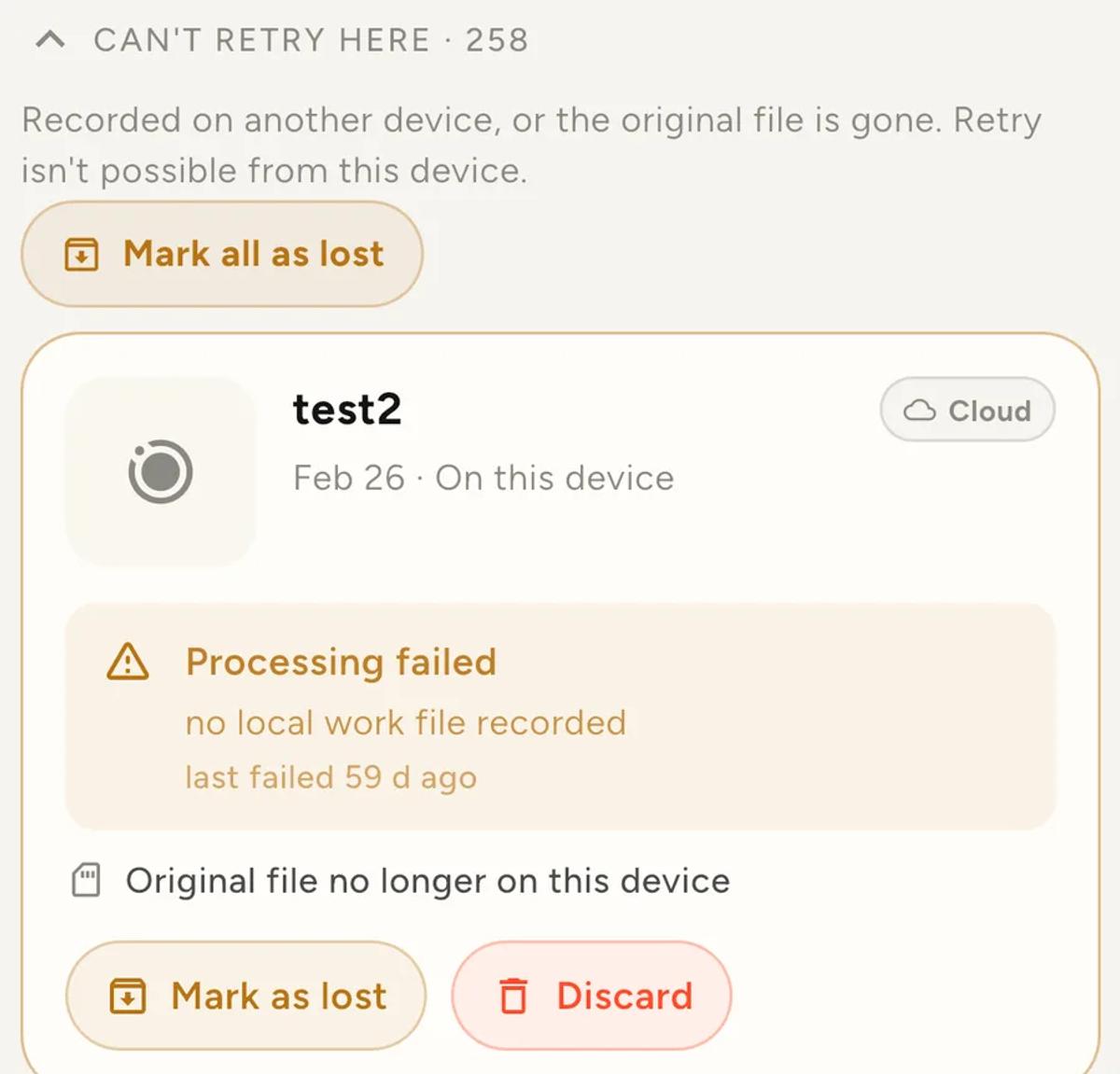
Each card also offers Discard, which removes that clip's record
altogether rather than flagging it as lost. Use it for takes you never
wanted, and Mark as lost for ones you did but cannot recover.
What to do about it
Go to the phone that recorded them and retry from there.
The app usually tells you which one. When the whole group traces back to a
single device, the home screen names it, so you are looking for a specific
phone rather than guessing.
If you are not sure which device is which, check Profile, then
Devices. Every phone and tablet signed into your account is listed with
when it was last seen.
Once you are on the right device, those clips move into Needs attention,
because now both conditions are true, and Retry all will pick them up.
Retry all, and what the count means
Retry all only touches clips this device can actually restart. If it
reports something like "Retrying 4, 2 missing on this device", the two it
skipped are ones whose original file is no longer here. Retrying harder will
not bring them back.
Marking clips as lost
Sometimes there is no device to go back to. A phone was wiped, sold, or the
files were cleared months ago. Those clips would sit in the count forever.
Mark all as lost is the exit. It flags every clip in the group as lost
across all your devices and clears them from the attention counts.
Two things worth knowing before you use it.
It does not delete anything you still have. It changes a status. If
another device still holds the files, go and retry there first, because
marking as lost does not stop you but it does clear the reminder that
something was outstanding.
Clips whose recorder is still online are skipped. If a device that
holds some of those files is still active, the app refuses to mark those
ones and tells you how many it skipped. It will not let you write off clips
that are about to become retryable.
Avoiding it in the first place
Do not clear storage until an event is delivered. The storage screen
offers to free up space by removing recordings and renders. That is safe
once clips are delivered, and it destroys your ability to retry if they are
not.
Retry before you pack down. A clip that fails at the venue can usually
be retried on the spot, while the phone that made it is still in your hand
and its files are still there.
Do the last check on each recording phone, not just one. The queue looks
different on every device, because what is retryable depends on where you
are standing. A phone showing a clean queue does not mean the event is
clean.
Keep reading

Add an overlay to your 360 photobooth videos
An overlay puts artwork on top of every clip your booth makes. Start from a template and edit it in the app, or upload a file of your own. Here is how, and why an overlay sometimes does not appear.
Read more →
Add music to your 360 photobooth videos
A soundtrack plays under every clip from your event. You can pick one track, or pick several and let each clip get a different one at random.
Read more →
Brand kit, event identity and booth overrides
Branding sits at three levels and they do not all behave the same way. Two follow your changes, one is copied once and never looks back.
Read more →