
The devices you run events on
Every phone and tablet you sign into shows up in one list. Here is what it tells you, and how the app decides which booth a clip belongs to.
Most operators end up with a few devices: a phone that goes on the arm, a
tablet that runs the Share Station, an old phone kept as a spare. They all
sign into the same account.
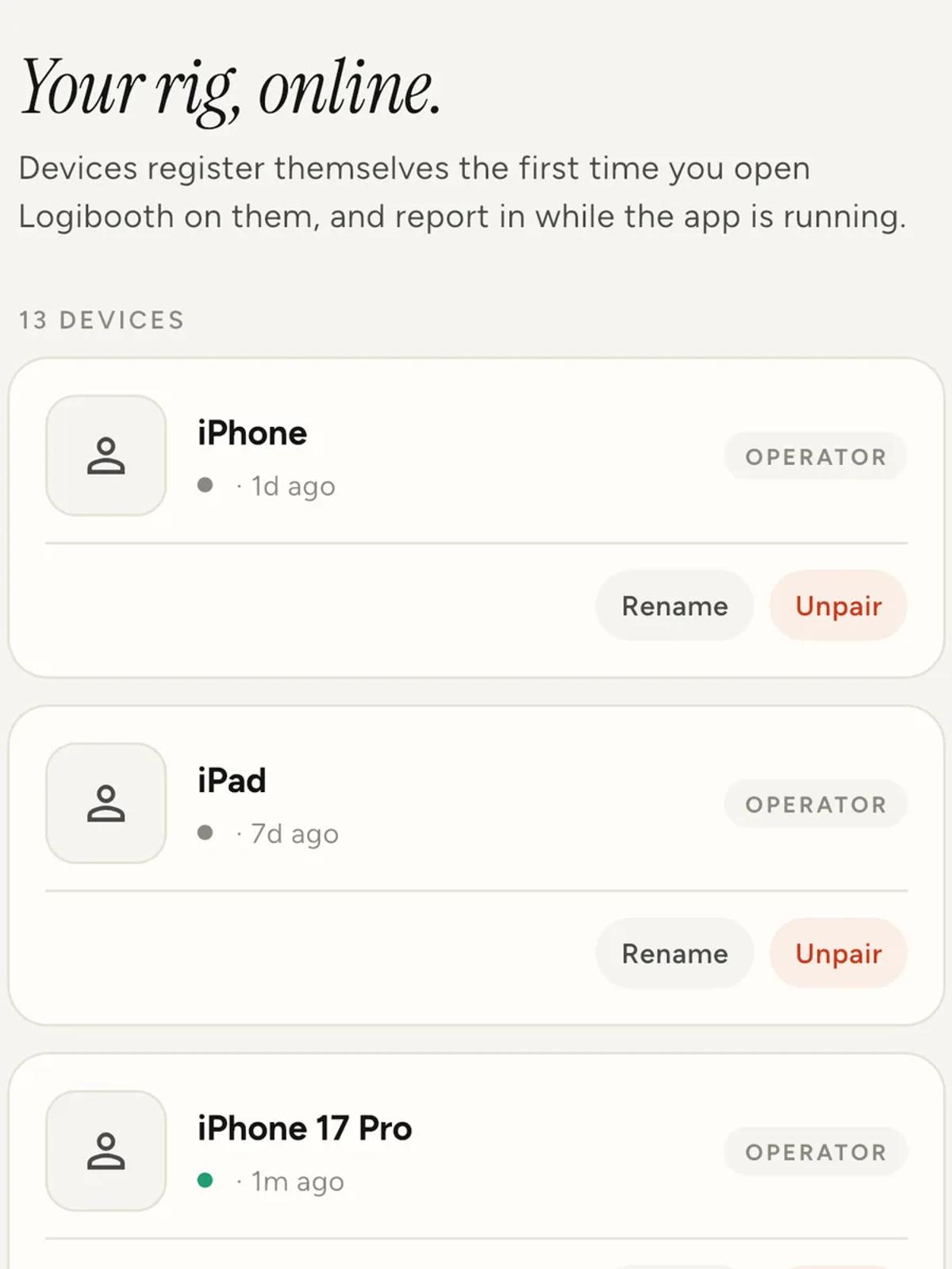
Open Profile, then Connected devices to see them.
What the list tells you
Devices add themselves the first time you open Logibooth on them, and check
in while the app is running. There is nothing to set up.
Each one shows when it was last seen. A green dot means it is running right
now, which is genuinely useful mid-event: if a recorder has fallen off, you
can tell from another device rather than walking over to it.
Rename them
Most phones report themselves as something unhelpful like "iPhone", and a
list of six of those tells you nothing.
Tap Rename and give each one the job it does. Arm phone, Station
iPad, Spare. Two minutes once, and every device list in the app makes
sense afterwards.
Unpair the ones you have stopped using
Unpair removes a device from the list. Use it for a phone you have sold,
replaced, or that belonged to someone who no longer works with you.
It does not delete anything the device recorded. Clips already in the cloud
stay where they are.
How a clip knows which booth it came from
This catches people out, because it is simpler than it looks.
A clip belongs to whichever booth you opened capture from. You tap into
the booth on the event screen, tap Open capture, and everything recorded
in that session is tagged to that booth. There is no assignment step.
So for a two-booth event you do not pair anything. You open the event on
each phone, tap into the booth that phone is running, and start. The clips
sort themselves.
Devices assigned on the event's readiness checklist is a tick you set
yourself, not something the app works out. It is a reminder that you have
your rig sorted, nothing more. There is more on that in
your first event, start to finish.
Before a big event
Open the app once on every device you are taking, while you still have
a connection. It confirms each one is signed in, that it can verify your
plan, and that it appears in this list.
That last one matters more than it sounds. A device that has never been
online cannot check your subscription, and clips it renders come out with
the Logibooth watermark on them. See
what Pro actually changes.
Keep reading
Add an overlay to your 360 photobooth videos
An overlay puts artwork on top of every clip your booth makes. Start from a template and edit it in the app, or upload a file of your own. Here is how, and why an overlay sometimes does not appear.
Read more →
Add music to your 360 photobooth videos
A soundtrack plays under every clip from your event. You can pick one track, or pick several and let each clip get a different one at random.
Read more →
Brand kit, event identity and booth overrides
Branding sits at three levels and they do not all behave the same way. Two follow your changes, one is copied once and never looks back.
Read more →