
Running an event with no internet
Guests still get their videos at a venue with no signal. What you lose is the lead capture. Here is exactly what works, what does not, and what to set up first.
Basements, marquees, older function rooms, and venue wifi that turns out to
be a guest portal with no route out. It happens often enough that you should
know what the booth does before it happens to you.
The short answer: guests still get their videos. You lose the lead
capture.
What still works
Recording. The camera and the arm do not need a connection.
Processing. Clips are rendered on the phone. Your intro, overlay, outro,
soundtrack and logo are all baked in locally.
Delivery to guests. This is the part that needs setting up in advance,
and it is covered below.
Pairing a Share Station. Two devices on the same wifi can pair and share
clips with no internet at all. The network only has to carry traffic between
your devices, not out to the world.
What does not work
Collecting guest contact details. The contact gate still appears and a
guest can still type an email into it, but saving that email needs the
internet. The guest sees a "Couldn't save" message.
The app handles this gracefully rather than trapping anyone. Over a local
connection the Skip for now link is forced visible even on a gate you
marked as required, so nobody is stuck behind a form that cannot submit.
They skip, and they still get their clip.
Plan for zero leads from an offline event. The save is attempted, and it can
succeed if a guest's own phone happens to have mobile data, but that is
their phone and their signal. It is not something you can set up, check, or
promise a client.
Review prompts. The review gate does not block anyone: it releases the
clip whether or not the review page opens. The page itself is skipped over a
local connection, because an offline phone cannot load it and navigating
away would only strand the guest.
Social follow prompts. The gate appears and Continue still advances, but
the link to Instagram or TikTok may not open. Nobody is trapped, and nobody
follows you either.
Set this up before you go
Three things, and all of them need doing while you still have a connection.
1. Add your branding while online. Intro, overlay, outro, soundtrack and
logo all upload to the cloud so that every paired device can fetch them. Add
them at a venue with no signal and your other devices will not have them.
2. Set delivery to Local. Cloud delivery hands the guest an internet
link, which is useless to them at a venue with no internet. Local serves the
clip from your phone over the venue network instead. There is a full guide
to that setting in
Cloud or Local.
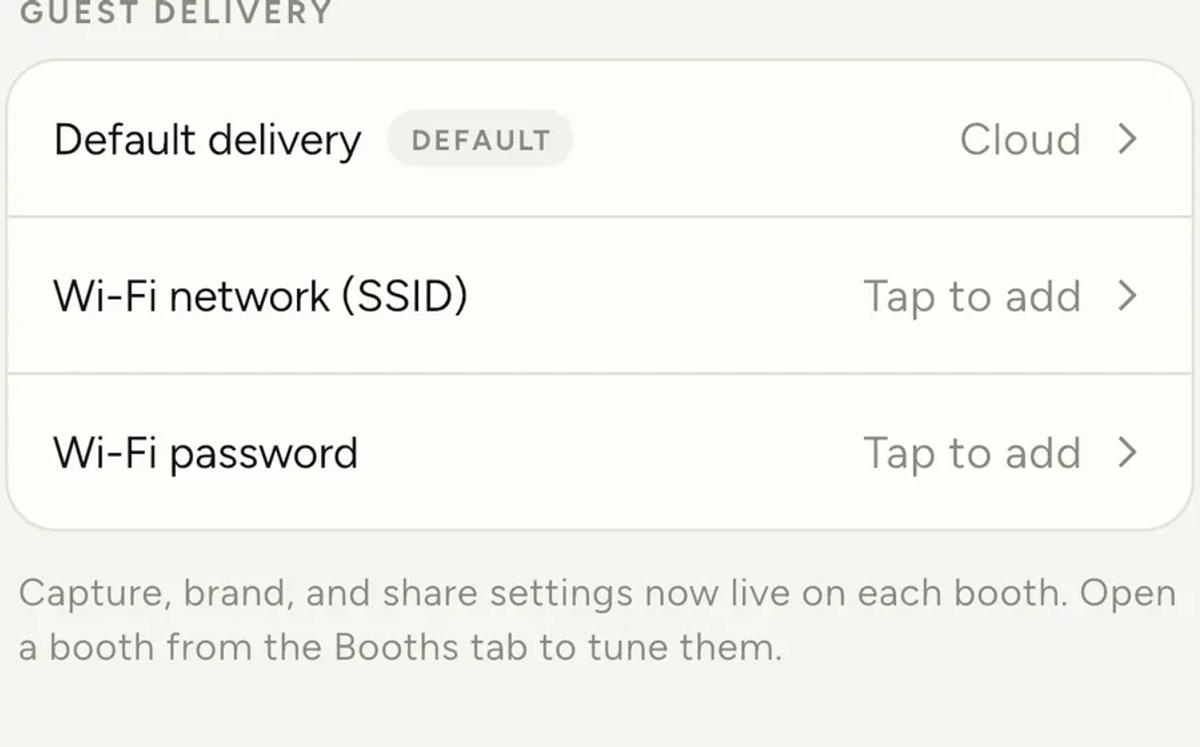
3. Fill in the Wi-Fi network and password. On a Local event these build
the QR code that joins a guest to your network. Without them the guest gets
a code pointing at an address they cannot reach, and it looks like the booth
is broken.
The network you actually need
Local delivery only works if the devices on the network can reach each other.
That is not a given.
Most venue guest wifi has client isolation turned on. It stops devices on
the network from talking to each other. That is sensible security for a hotel,
and it breaks a booth completely. The guest joins the wifi, scans the code, and
still cannot reach your phone. The network is working. Your booth is the thing
that looks broken.
You cannot change that setting on a network you do not own.
Bring your own network. A small travel router, running off a power bank,
with no internet uplink at all. It only has to exist, so that the recording
phone, the Share Station device and every guest are on one network that lets
them talk to each other. Because the router is yours, you are the one who makes
sure client isolation is off.
A personal hotspot is a fallback. It works for a small or last-minute
setup. A router is better for three reasons:
- A hotspot accepts only a handful of devices before it stops letting anyone
else on. A queue at a booth will reach that. - Your phone is already recording and rendering. Do not make it run the
network as well. - Your own router keeps the same network name at every event. You fill the two
Wi-Fi fields in once, and the join code can be printed once and reused.
Open the app online at least once first
This one catches people on a new phone.
If you are on Pro, the app checks that with our servers. On a device that
has never once been online, it cannot check, so it treats the account as
free and bakes the Logibooth watermark into the clips.
That decision is permanent. Finished clips are never re-rendered, so an
entire event can come out watermarked even though you are paying for Pro.
Open the app once, on any connection, before you leave. It only has to
succeed once on that device.
After the event, back up before you tear down
Clips from a Local booth are not uploaded automatically. They sit on the
phone that recorded them until you upload them yourself.
- Open the event, tap the Booths tab, open the booth.
- Find the card reading Served locally, not backed up.
- Tap Upload all once you have a connection.
Until that runs, the only copy is on that phone. Clearing storage or losing
the device loses the clips, and there is nothing to restore from.
Do it before you pack down, on the venue wifi or your own hotspot. It is the
single most common way to lose a night's work.
What catches up on its own
Once you are back online, anything that was waiting sorts itself out. A
Cloud booth that could not upload during the event has its clips deferred
rather than failed, and they go up when the connection returns.
The one thing that does not catch up is the lead capture. Those details were
never saved anywhere, so there is nothing waiting to sync.
Quick checklist
Before you leave:
- Branding added and uploaded
- Delivery set to Local
- Wi-Fi network and password filled in
- App opened online at least once on every device you are taking
- Devices paired
- A router or hotspot to put them all on, if the venue wifi cannot be trusted
Before you pack down:
- Upload all, on every phone that recorded
Keep reading
Add an overlay to your 360 photobooth videos
An overlay puts artwork on top of every clip your booth makes. Start from a template and edit it in the app, or upload a file of your own. Here is how, and why an overlay sometimes does not appear.
Read more →
Add music to your 360 photobooth videos
A soundtrack plays under every clip from your event. You can pick one track, or pick several and let each clip get a different one at random.
Read more →
Brand kit, event identity and booth overrides
Branding sits at three levels and they do not all behave the same way. Two follow your changes, one is copied once and never looks back.
Read more →