
Collect guest emails and phone numbers
Guests can leave an email or number before they download. Here is how to turn it on, why it needs a privacy policy, and where the details end up.
Before a guest downloads their clip, Logibooth can ask for an email address
or a phone number. Every guest who does becomes a contact you can reach
after the night is over.
There are two separate gates for this, Email capture and Phone
number, and you can run either or both.
They will not work without a privacy policy
This is the part that catches people.
Both gates need a privacy policy URL. Without one they are silently
skipped. Not disabled, not warned about at the venue: the guest simply
never sees them, and you collect nothing all night.
The app says so on the gate itself, but only if you look: "No privacy policy
set. Guests skip this gate until [you add one]."
So add it first. Open the gate, tap the Privacy policy pill, and paste a
URL that starts with http:// or https://. That page is shown to guests
on the capture screen, so it needs to actually exist and actually describe
what you do with their details.
Turn a gate on
- Open Profile, then Guest gates, to set your defaults. Every new
event inherits them. - Toggle Email capture or Phone number on.
- Add the privacy policy if you have not already.
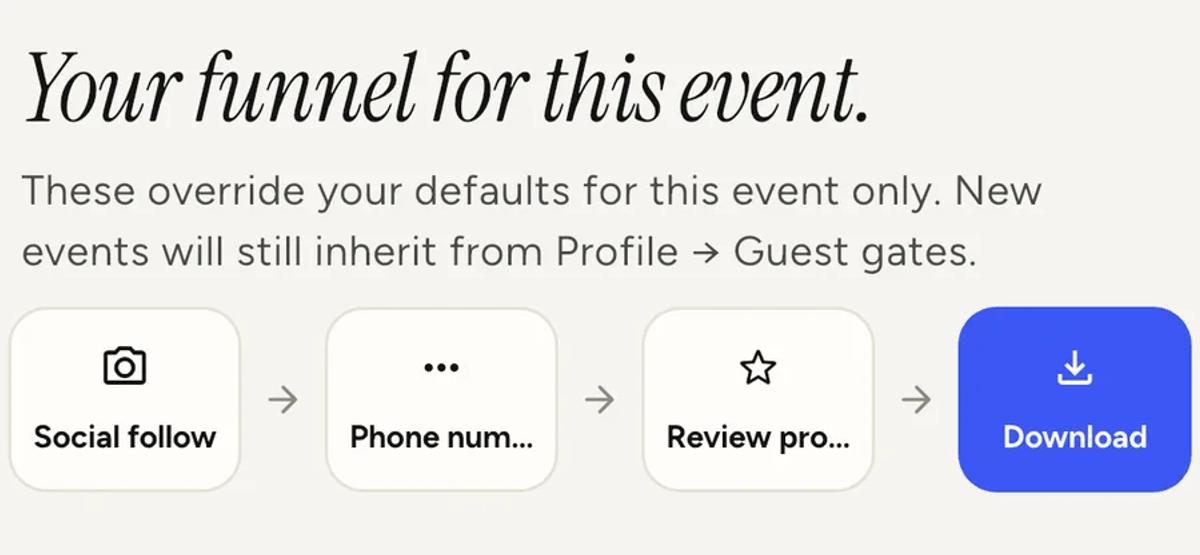
You can also override the gates on an individual event, which is worth doing
when one client is more sensitive about it than another. The event's own
gates screen shows the running order and says plainly that it overrides your
defaults for that event only.
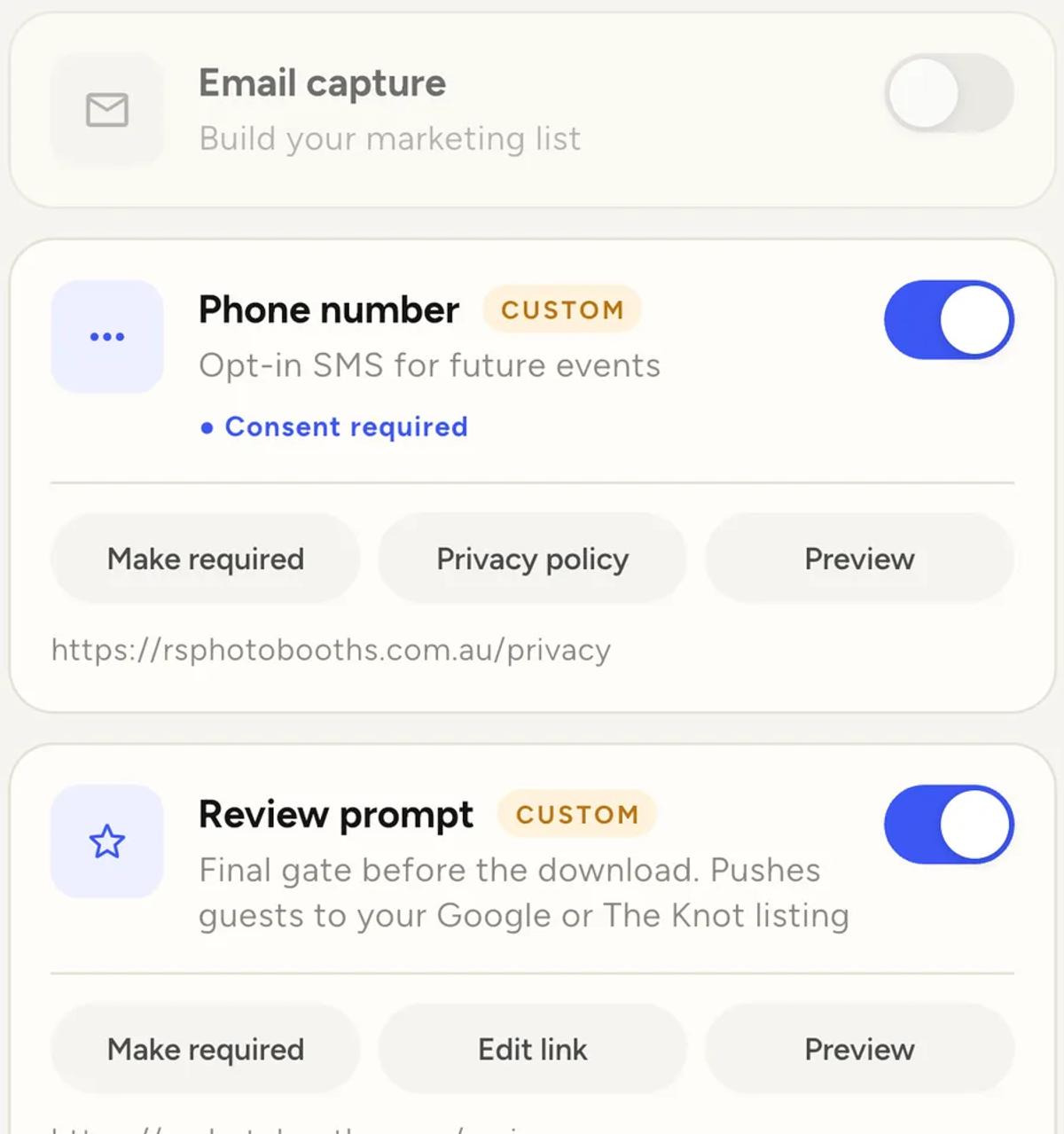
Each gate is a card with a switch, a link or privacy policy pill, and a
preview. A gate switched off is greyed out and guests never see it.
Required or optional
Each gate has a second switch: required.
Optional shows the ask with a skip link. The guest can decline and still
get their clip.
Required locks the download until they fill it in.
Required collects more. It also means a guest who does not want to hand over
an email does not get the video they just made, which is a decision about
your event, not a setting. Most operators leave it optional and still do
well, because a guest who has just watched themselves is in a generous mood.
Phone numbers need consent
The phone gate is for opting guests into messages about future events. That
is a different promise from an email address, and in most places it carries
rules of its own about consent and about letting people opt back out.
Whatever your privacy policy says here, it needs to be true, because this is
the gate most likely to be complained about.
What the guest actually sees
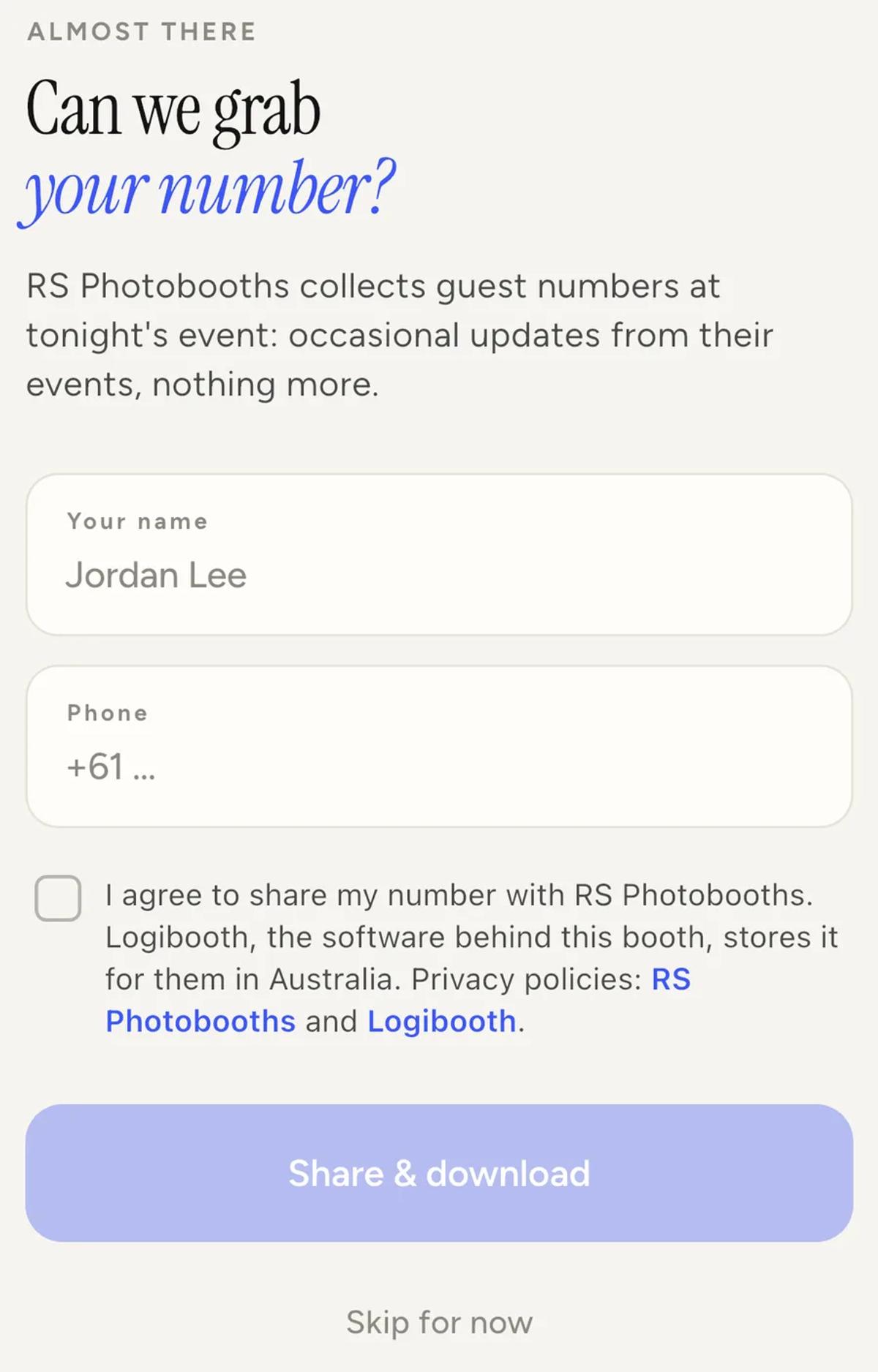
The consent tick is not decoration. The text names your business, names
Logibooth as the software storing it, says where it is stored, and links both
privacy policies. That is why the gate insists on having your policy URL.
Share & download needs three things, not just the tick: a name, an email,
and the consent box. Ticking the box on its own leaves the button dead, and it
does not change appearance until all three are there. Worth knowing, because a
guest who tells you the button is broken has usually missed one of them.
Test it before the event
You do not have to guess what guests will see. Open the event, tap the
Guests tab, then Preview guest flow.
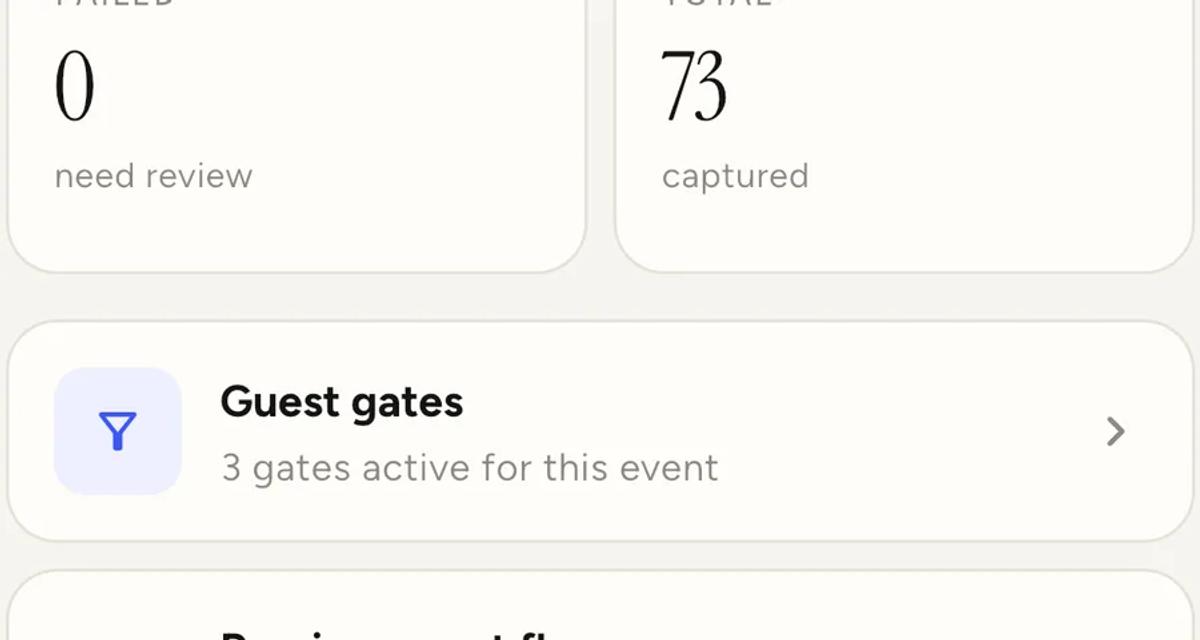
It walks you through the gates in order, exactly as a guest gets them, and
nothing you type is saved. It lists the gates first, so you can see the
order and whether each one is skippable before you start.
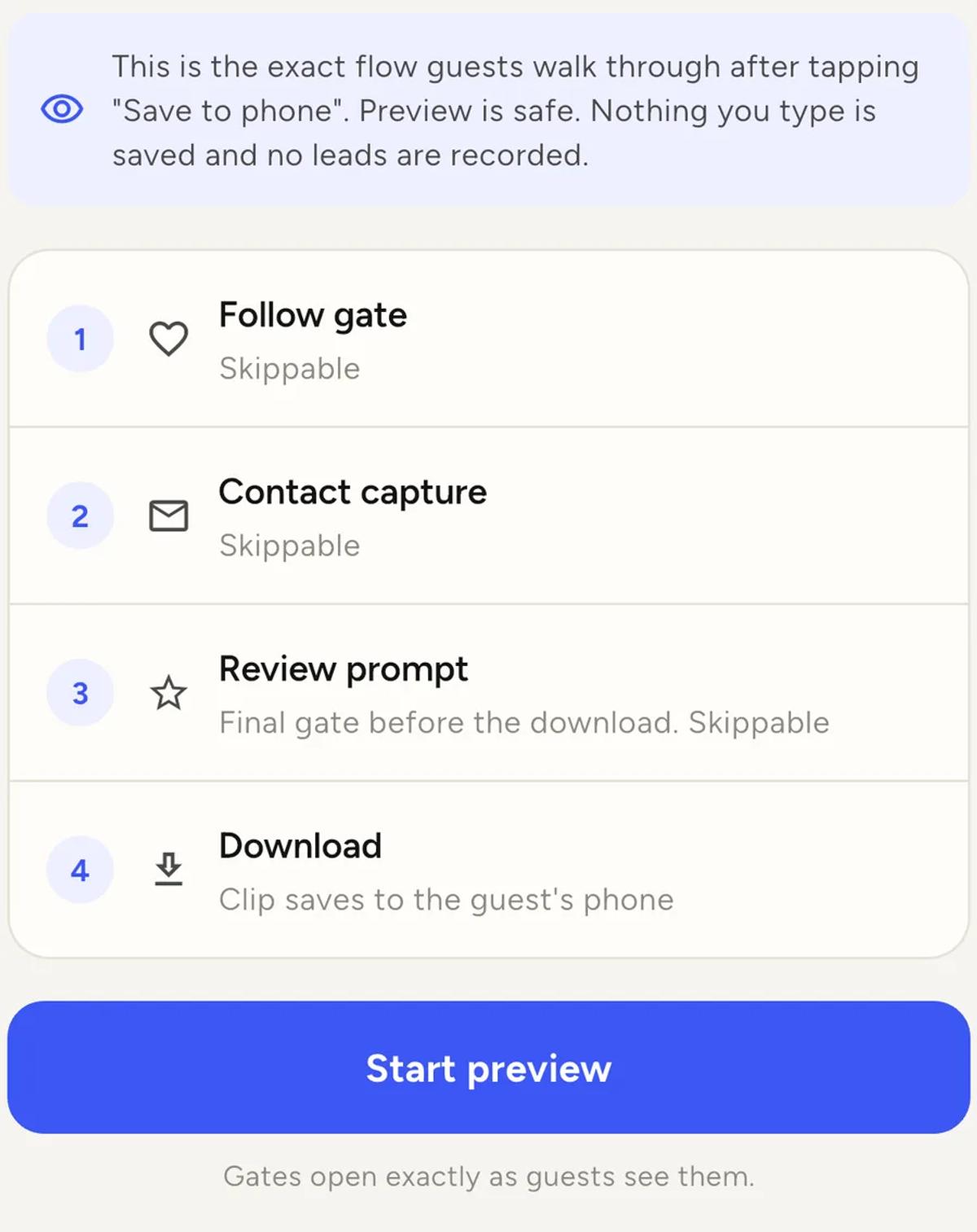
Run it once after you change anything. It is the fastest way to catch a gate
that is silently skipped because its link is missing.
Where the details go
Open Profile, then Guest gates. Contacts collected are listed there,
with a total and a breakdown by event, and you can export them.
Nothing is collected until a guest passes a gate, so an empty list right
after an event usually means the gate was skipped rather than declined. If
you had no privacy policy set, that is your answer.
It does not work offline
At a venue with no internet, the gate still appears and a guest can still
type an email, but saving it needs a connection. They see a message saying
it could not be saved, and the app lets them skip through so they still get
their clip.
Plan for zero contacts from an offline event. There is more on what does and
does not work in
running an event with no internet.
Guest details do not sit around forever
Contact details collected from guests are deleted automatically after a
retention window. Export anything you want to keep into your own mailing
list rather than treating the app as long-term storage.
Keep reading
Add an overlay to your 360 photobooth videos
An overlay puts artwork on top of every clip your booth makes. Start from a template and edit it in the app, or upload a file of your own. Here is how, and why an overlay sometimes does not appear.
Read more →
Add music to your 360 photobooth videos
A soundtrack plays under every clip from your event. You can pick one track, or pick several and let each clip get a different one at random.
Read more →
Brand kit, event identity and booth overrides
Branding sits at three levels and they do not all behave the same way. Two follow your changes, one is copied once and never looks back.
Read more →