
When the Share Station will not pair
Every way pairing fails at a venue, what each message actually means, and the fix. Work down the list in order.
Local sharing pairs two devices: the phone recording the booth, and a tablet
showing clips to guests. When it works you barely notice it. When it does
not, it is usually at a venue, with a queue forming.
This page is every way it fails and what each one actually means. Work down
in order.
Opening the wizard
The setup flow is hidden until the booth is set to Local, which catches
people out. If you open the Share Station looking for a pairing button, you
will not find one.
Start on the recorder instead:
- Open the event and tap the Booths tab.
- Open the booth.
- Tap Settings, then Guest delivery.
- Choose Local.
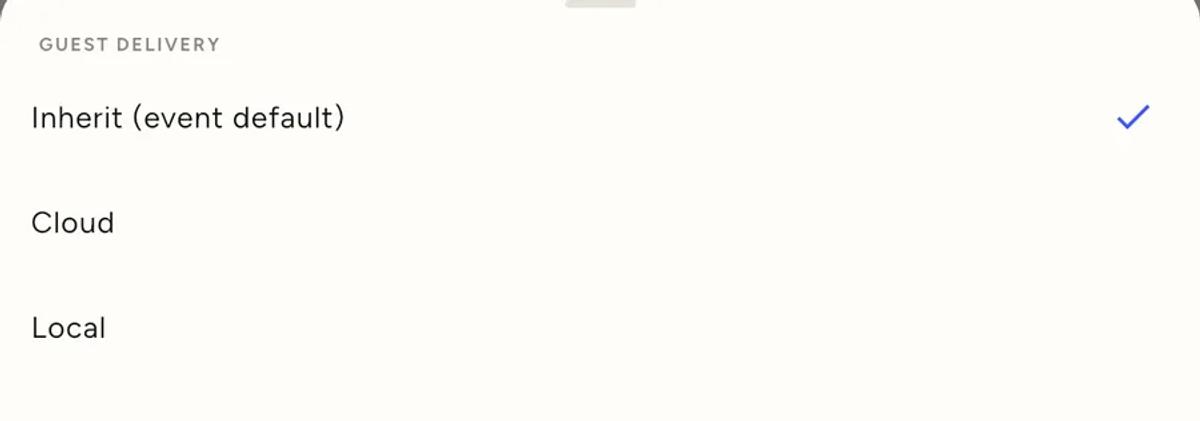
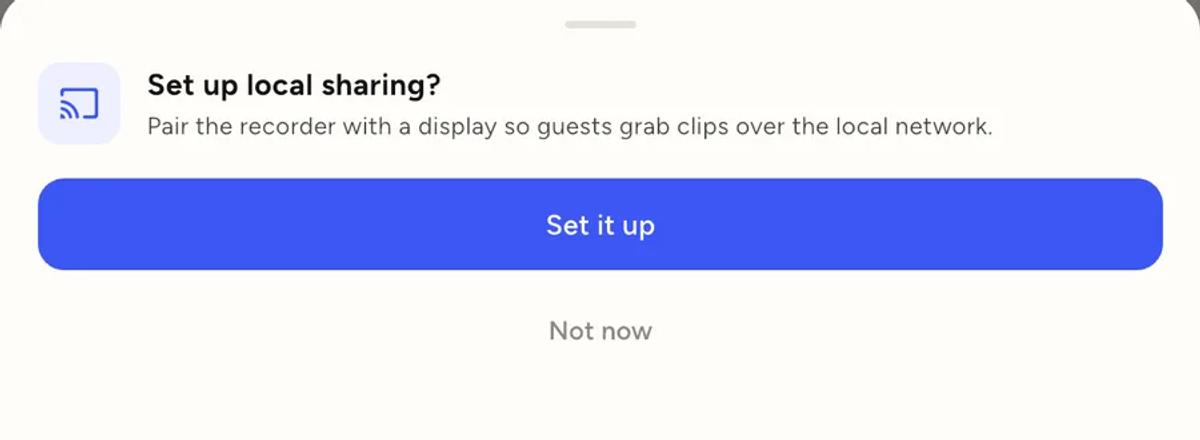
The moment you pick Local, the app offers to set up pairing, and two Wi-Fi
fields appear alongside a Set up local sharing row.
First, the two roles
The wizard asks each device what it is doing, and it never guesses.
Recording the booth is the source. It captures clips and serves them
over the network.
Showing clips to guests is the display. It pairs with a recorder, pulls
its clips, and shows them to guests.
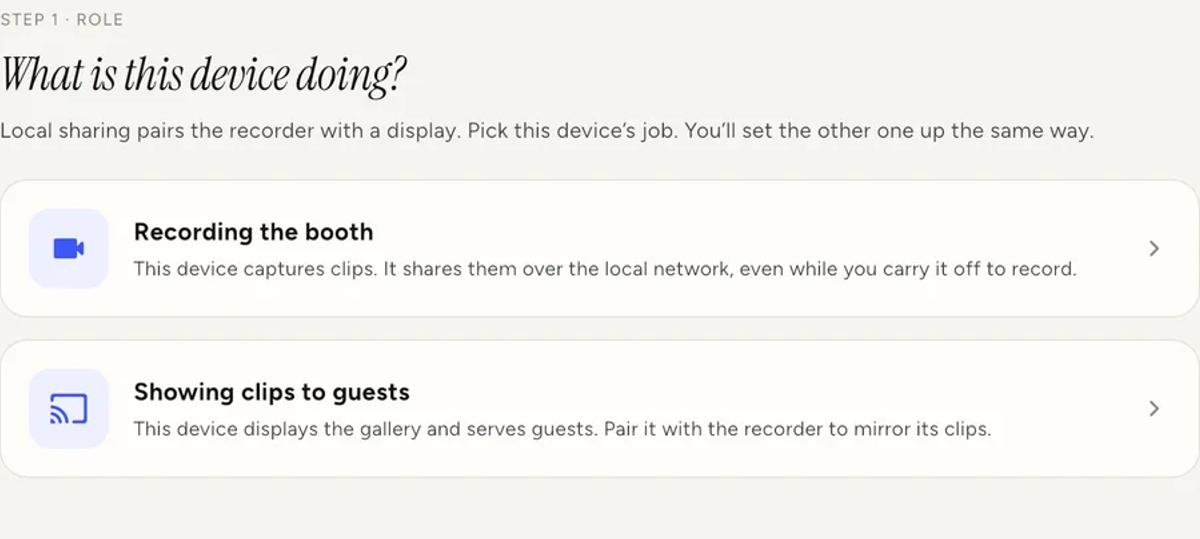
Set up the recorder first. The display has nothing to scan until the
recorder is ready.
Step 2 problems: getting on the network
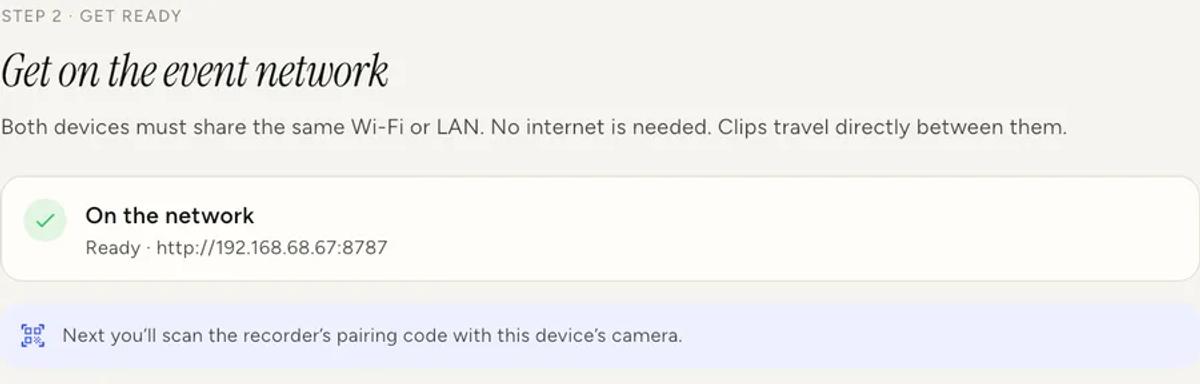
"Connect to the event Wi-Fi"
The device has no local address yet. Join the venue network, and on iOS
allow Local Network access when asked.
That permission prompt is the one people miss. Decline it and the app cannot
see the other device at all, even though both are on the same wifi. If you
tapped Don't Allow, you have to turn it back on in the iPhone or iPad
Settings for Logibooth. The app cannot re-ask.
No internet is needed here. The network only has to carry traffic between
your two devices.
"Sharing port is busy"
This one is not a network problem, and the fix for a network problem will
not help.
Another app, or a previous session of Logibooth that did not shut down
cleanly, is holding the port used for sharing. The app retries on its own.
If it does not clear, fully close Logibooth and open it again. Restarting
the device clears it for certain.
"Set this booth to Local"
The recorder is on the network but the booth is still set to Cloud
delivery, so it has nothing to share locally.
Open the booth's Guest delivery setting and choose Local. There is a full
guide in
Cloud or Local.
Step 3 problems: scanning the code
"That's not a pairing code"
You scanned the wrong QR. This is easy to do, because a Share Station shows
guests a Wi-Fi joining code as well, and clips have their own codes.
The pairing code is the one on the recorder, inside the Local sharing
wizard. Not the one on the display, and not one from the guest screen.
"Finding a local address"
The recorder has not produced its pairing code yet. It is waiting to get an
address on the network. Check it is on the event wifi and that Local Network
access is allowed. The code appears by itself once both are true.
"Could not pair with that booth"
The code was valid but the display could not reach the recorder.
Almost always this means the two devices are not really on the same network,
even though both show wifi. Common causes:
- One device is on the venue's guest network and the other is on the staff
network - The venue wifi has client isolation turned on, which blocks devices from
talking to each other. Common in hotels and conference centres - One device dropped to mobile data and is no longer on the wifi at all
The test is simple: both devices must be on the same network name, and that
network must allow devices to see each other. If the venue wifi isolates
clients, use your own hotspot for the two devices instead. They do not need
internet, only each other.
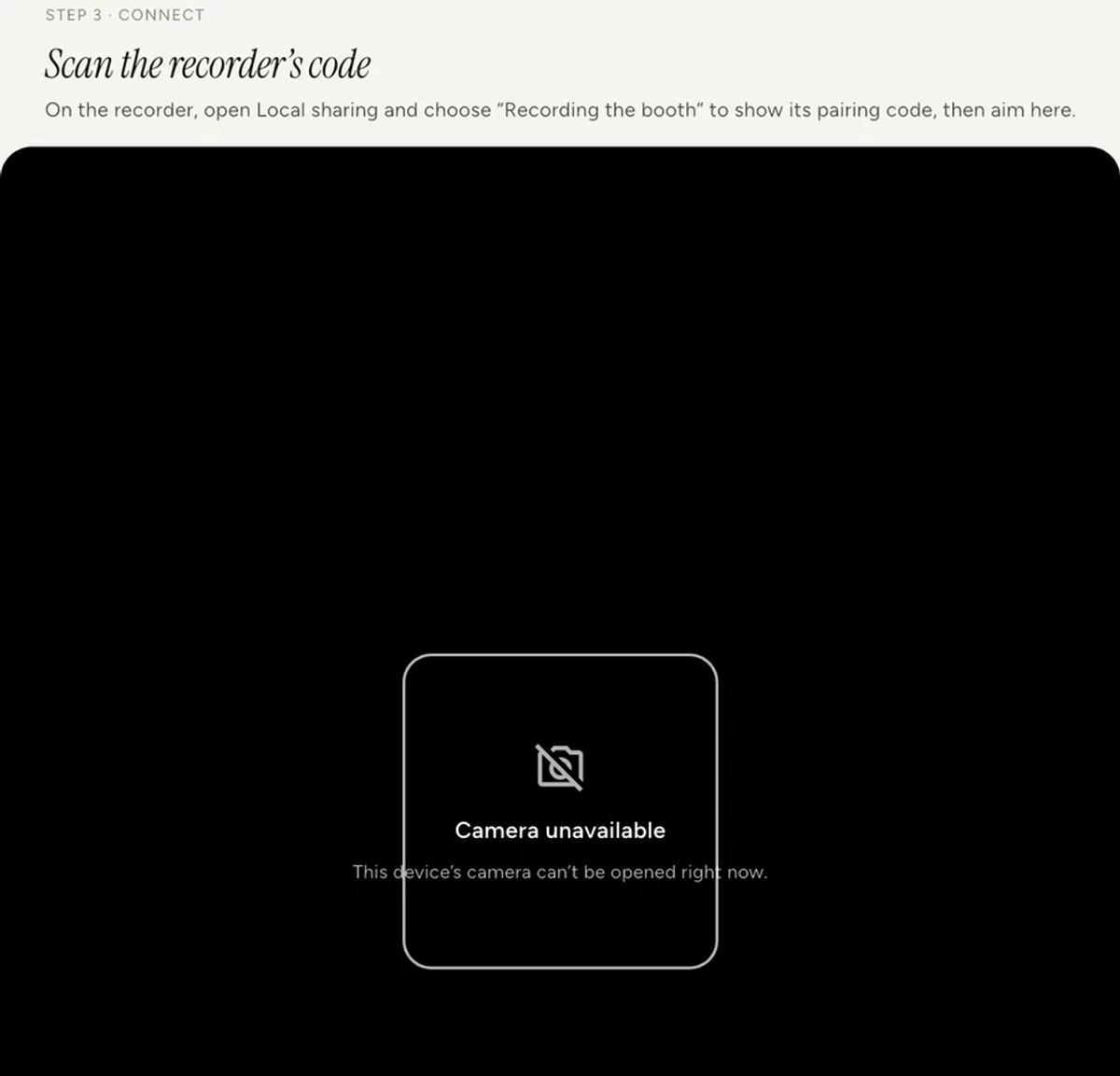
"Camera access needed" or "Camera unavailable"
The display cannot scan without a camera.
Camera access needed means you declined the permission. Allow camera
access for Logibooth in Settings.
Camera unavailable means something else has the camera open. Close other
apps and try again.
During the event: "Can't reach recorder, re-pair"
This appears on the station in amber once the display has missed the
recorder a few times in a row, which takes about fifteen to twenty five
seconds.
It means the display had a working pairing and lost it. The usual causes are
the recorder falling off the wifi, or the recorder's address changing.
Wait before you do anything. When the display notices it cannot reach
the recorder, it searches the local network for it and re-pairs by itself if
it finds it. An address change during an event is the case it is built to
recover from.
If it does not recover, re-scan the pairing code. The recorder shows it
again from the same wizard.
Clips stopped appearing but nothing looks wrong
If the recorder's app restarted at some point, the display can end up
believing it is already up to date when it is not. Nothing errors. Clips
simply stop arriving.
Re-scan the pairing code. That resets the display to pull everything from
the beginning, which is exactly what this situation needs. Nothing is
downloaded twice.
Two things to know before the night
Keep the recorder unlocked with the app open. iOS suspends a backgrounded
app and sharing stops with it. It resumes by itself when you come back, but
while the recorder is locked or you are in another app, the display gets
nothing. This is the single most common cause of "the iPad stopped getting
clips".
Re-pairing a display to a different recorder or event clears it. The
clips it was showing are dropped on purpose, so guests at one event never
see another event's clips.
Keep reading
Add an overlay to your 360 photobooth videos
An overlay puts artwork on top of every clip your booth makes. Start from a template and edit it in the app, or upload a file of your own. Here is how, and why an overlay sometimes does not appear.
Read more →
Add music to your 360 photobooth videos
A soundtrack plays under every clip from your event. You can pick one track, or pick several and let each clip get a different one at random.
Read more →
Brand kit, event identity and booth overrides
Branding sits at three levels and they do not all behave the same way. Two follow your changes, one is copied once and never looks back.
Read more →