
Freeing up space on your booth phone
Recordings stay on the phone after they upload. Here is what is safe to clear, what is not, and why the app refuses to delete some of it.
A booth phone fills up. Every clip is recorded, rendered and then kept
locally so playback is instant, and after a few big events that adds up.
Open Profile, then Storage.
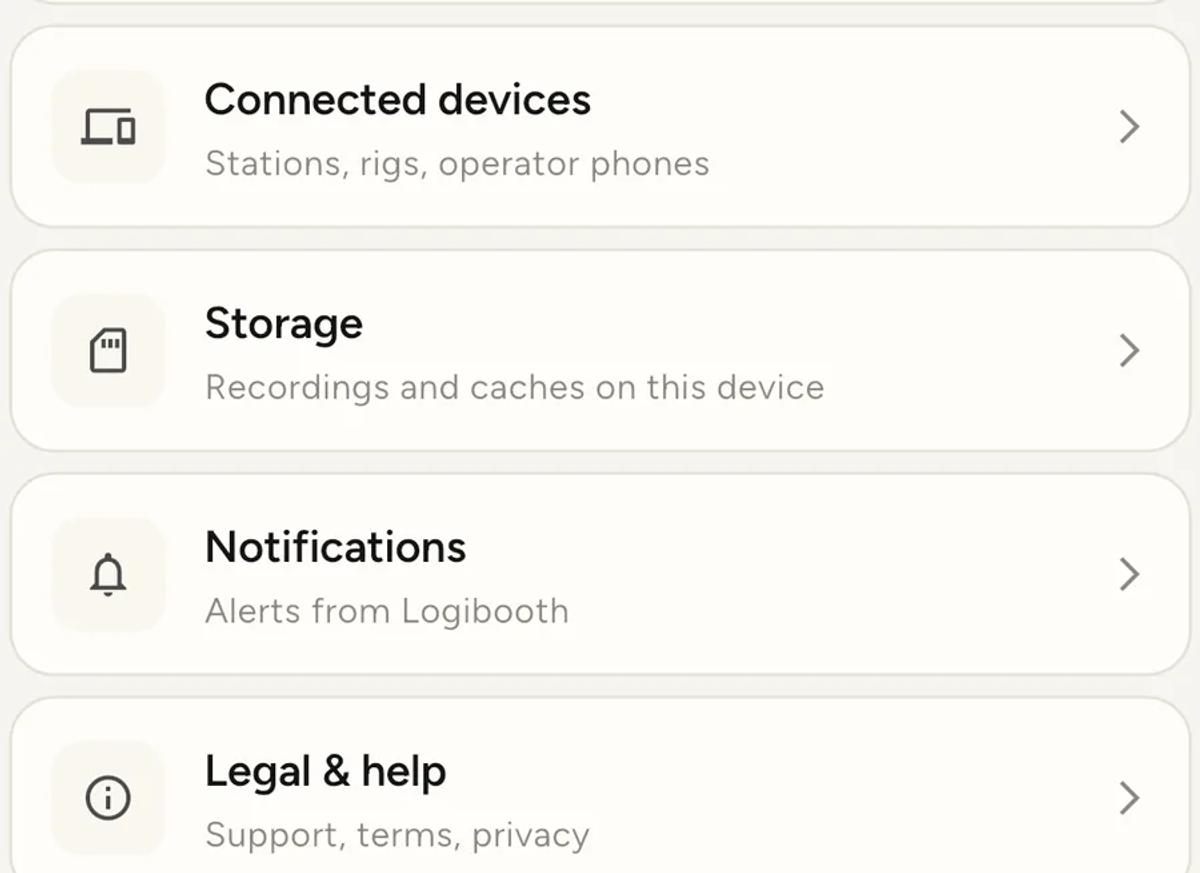
What the categories mean
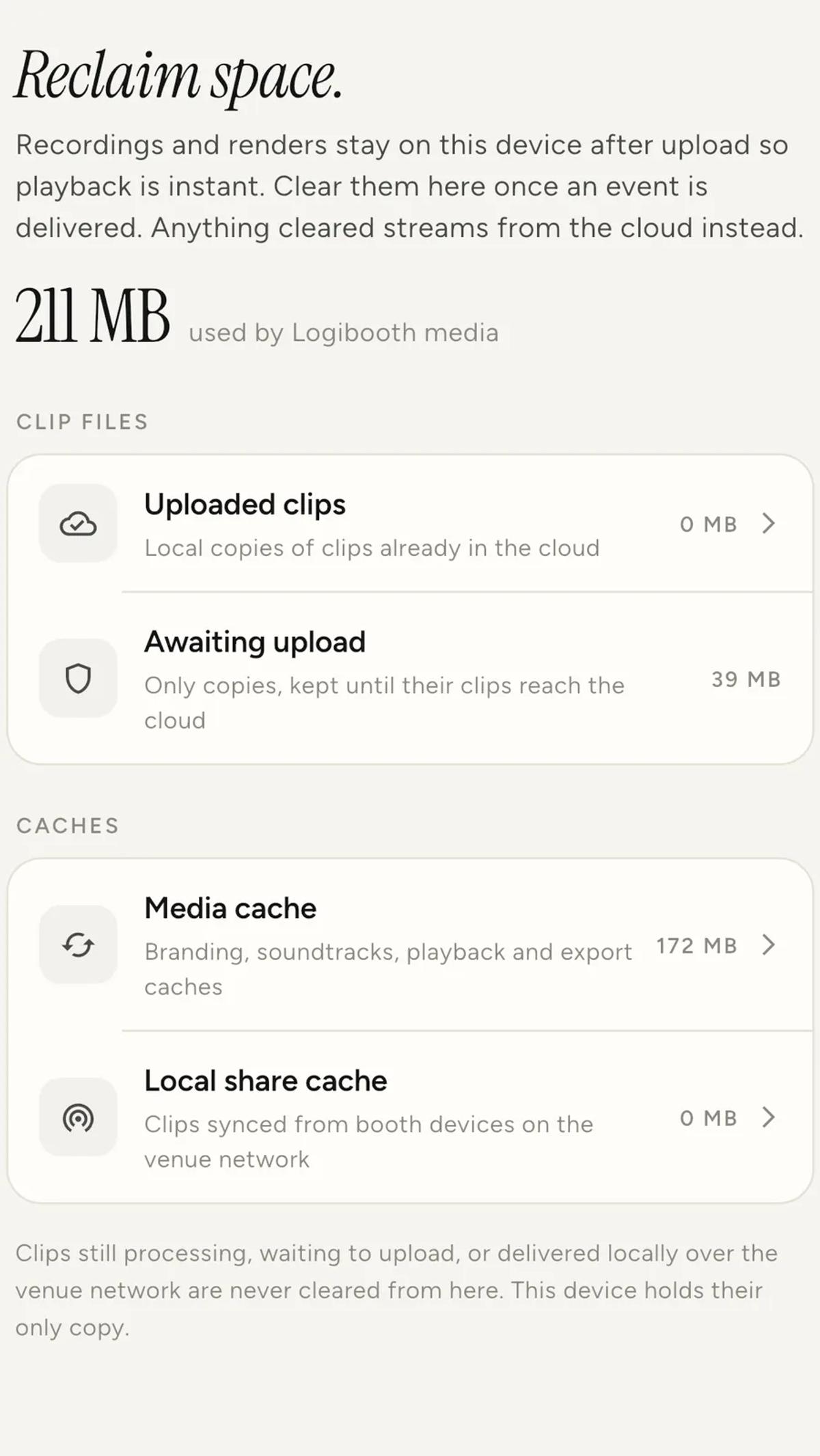
Uploaded clips. Local copies of clips that are already in the cloud.
Safe to clear. Guests are unaffected, and in-app playback simply streams
from the cloud instead of playing from the phone.
Awaiting upload. Clips that have not reached the cloud yet. This
device holds their only copy.
Media cache. Branding files, soundtracks, playback and export caches.
Safe to clear. It rebuilds itself as you use the app, so clearing it makes
the next few things you open a little slower and nothing else.
Local share cache. Clips a Share Station pulled from a booth over the
venue network. Safe to clear once the event is delivered.
The app will not let you delete the only copy
Look at the Awaiting upload row: it has no arrow and nothing happens when
you tap it. That is deliberate.
The note at the bottom of the screen says it plainly. Clips still
processing, waiting to upload, or delivered locally over the venue network
are never cleared from here, because this device holds their only copy.
So you cannot use this screen to destroy an event. That is worth knowing,
because the reverse is a real risk: clearing space through iOS settings or
by deleting the app does not have that protection.
When to do it
After an event is delivered, not before. Delivered means the clips are
in the cloud and the client has what they need. There is a full guide to
that in
delivering the clips to your client.
Before a big event, so you are not discovering a full phone with a queue
forming. Clearing uploaded clips from last month is the cheapest space you
will find.
If Awaiting upload is large
That is a signal, not a storage problem. It means clips have not reached the
cloud, which usually has one of two causes.
The event ran on Local delivery, so nothing uploads automatically. Open
the booth and tap Upload all. See
Cloud or Local.
Uploads have been failing. Check the processing queue, and see
when a clip cannot be retried from this device.
Either way, get them uploaded before you clear anything else.
Keep reading
Add an overlay to your 360 photobooth videos
An overlay puts artwork on top of every clip your booth makes. Start from a template and edit it in the app, or upload a file of your own. Here is how, and why an overlay sometimes does not appear.
Read more →
Add music to your 360 photobooth videos
A soundtrack plays under every clip from your event. You can pick one track, or pick several and let each clip get a different one at random.
Read more →
Brand kit, event identity and booth overrides
Branding sits at three levels and they do not all behave the same way. Two follow your changes, one is copied once and never looks back.
Read more →