
Set up the Share Station
A tablet on a stand that plays clips back and lets guests grab their own. Here is how to run one, and what every control on it does.
The Share Station is a second screen at your booth. It plays clips back as
they land and lets guests take their own without queueing at your phone.
It is the difference between guests waiting for you and guests serving
themselves, which matters most at exactly the moment a booth gets busy.
Any device signed into your account can be one. A tablet on a stand is the
usual choice because it is big enough to watch from a few steps away.
Open it
- Sign the tablet into the same Logibooth account.
- Open the event, then the Booths tab, then the booth.
- Tap Station.
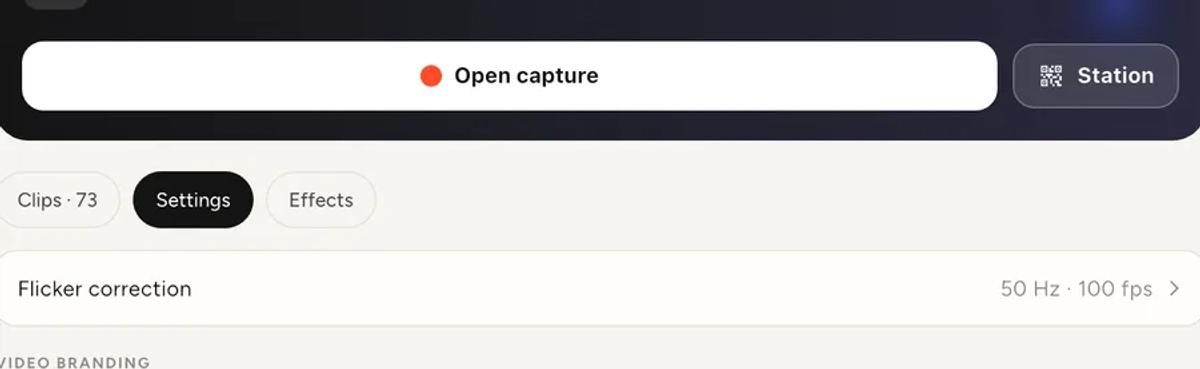
That is the whole setup for a station on the same internet connection as
your recorder. If the venue has no internet, the two devices need pairing
over the local network instead, which is covered in
when the Share Station will not pair.
There is nothing to configure
If you go looking for station settings, you will not find much. The station
follows the event: it uses the identity, logo and branding you set on the
event it belongs to.
So to change what guests see, edit the event, not the station.
Live: the default view
Live is what you leave on screen during the event. It plays the most recent
clips on a loop, with a QR beside them.
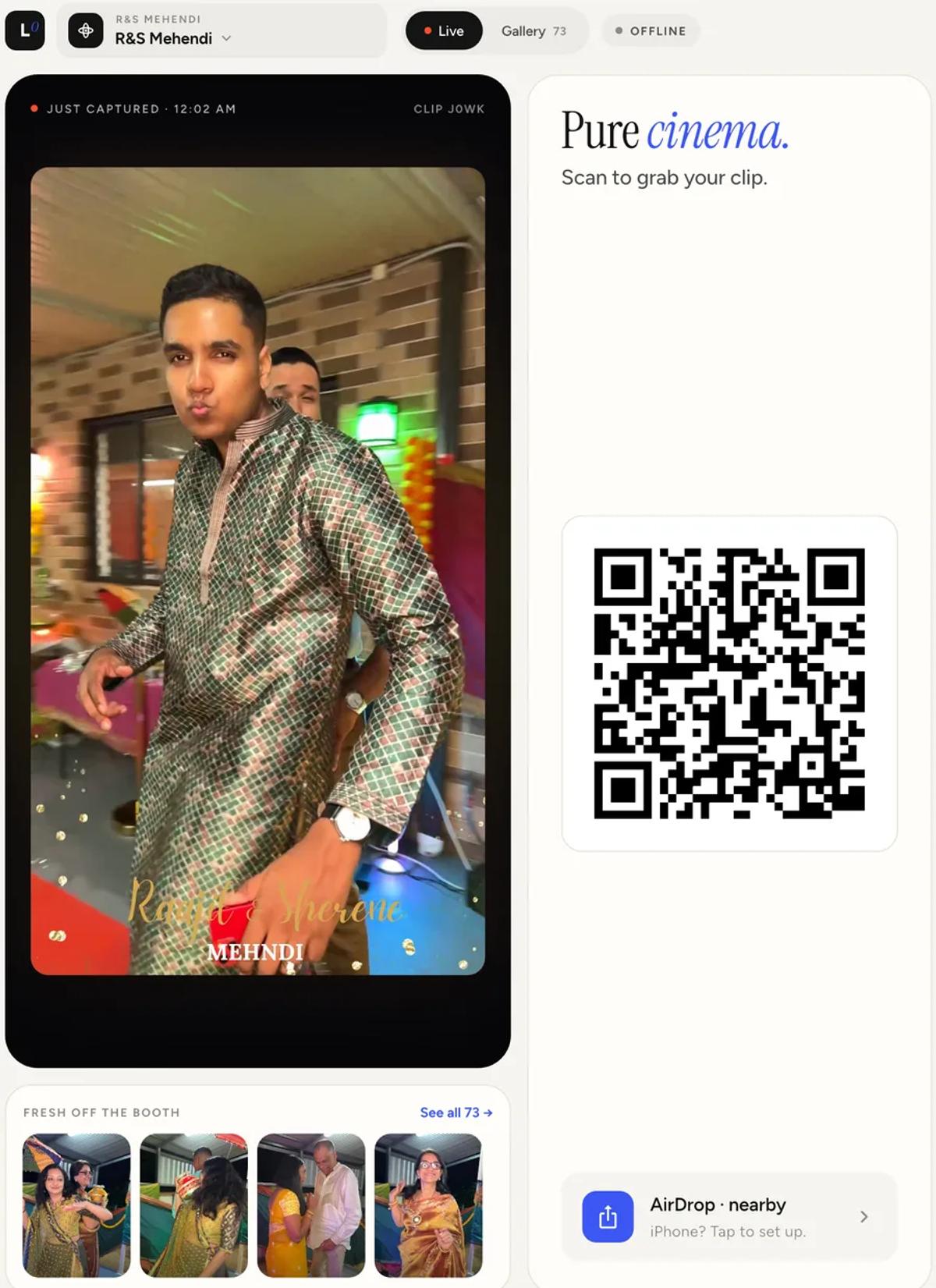
The QR is how a guest gets the clip that is playing. They scan, and the
video opens on their phone.
Along the bottom, Fresh off the booth shows what has landed recently, so
a guest who just stepped off the arm can see their clip arrive.
Gallery: for guests who missed theirs
Tap Gallery to see everything, grouped by when it was recorded.
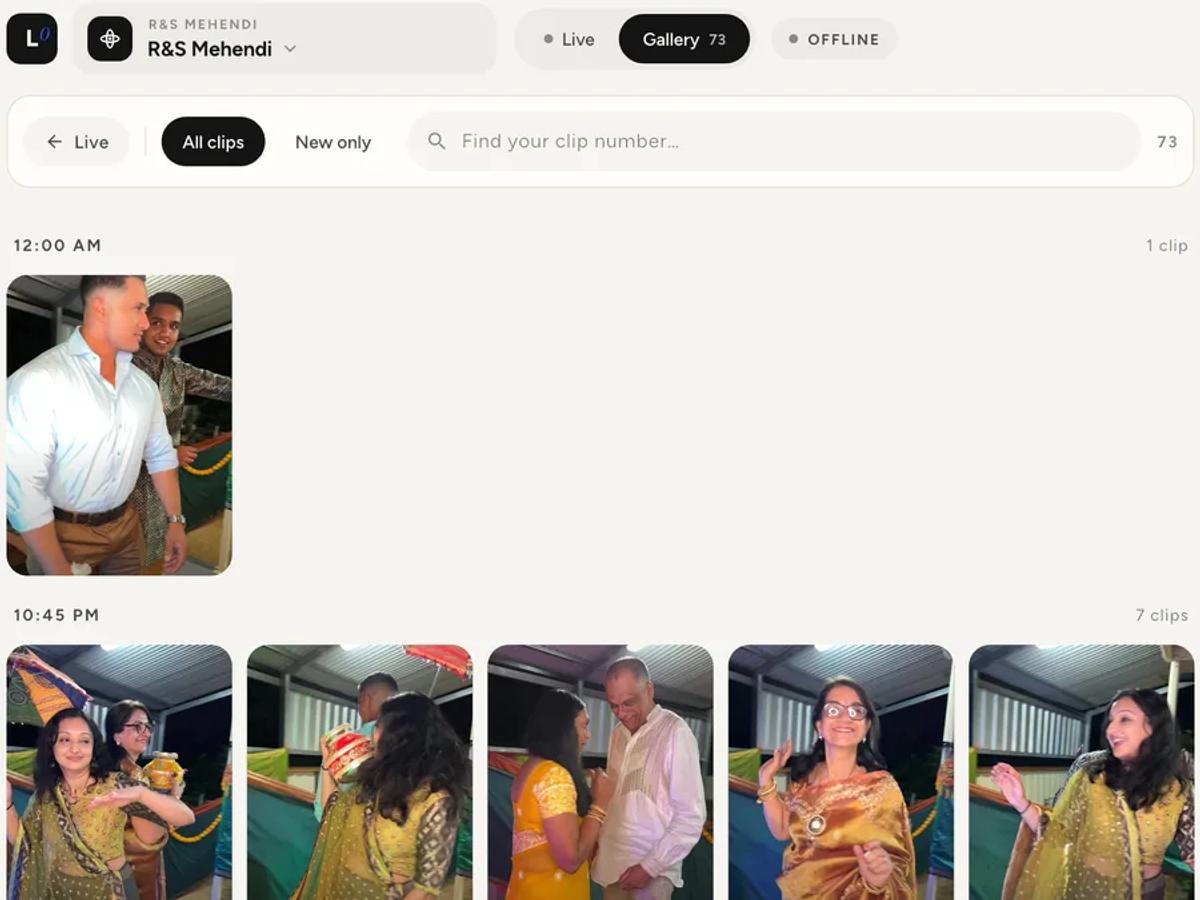
Three controls matter here.
All clips and New only. New only narrows to what has arrived
recently, which is what a guest who just finished wants.
Find your clip number. Every clip has a short code, shown on screen in
Live view. If a guest remembers theirs, this is the fastest way to find it
in a night with hundreds.
Late in an event, Gallery is more useful than Live, because most guests are
looking for something specific rather than watching what plays next.
Running more than one booth
If the event has several booths, the station can show one or all of them.
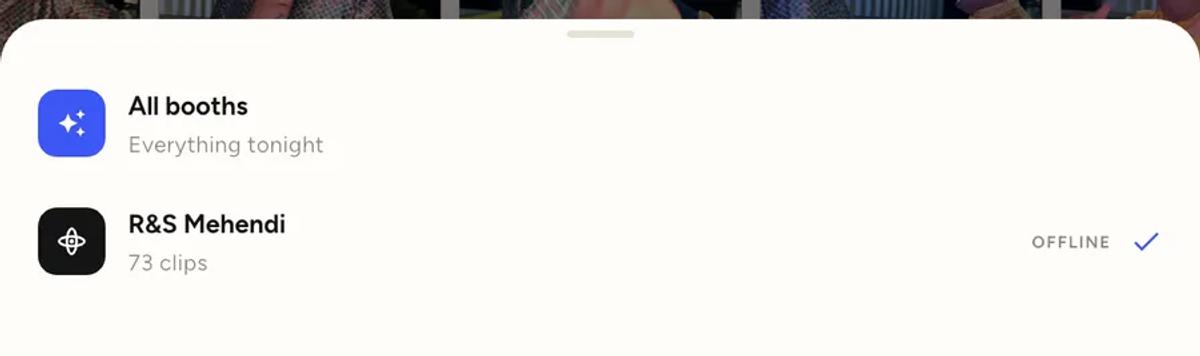
All booths pools everything from the night. Picking a single booth shows
only its clips, which is what you want when two booths are in different
rooms and guests should only see the one they used.
AirDrop, for iPhone guests
The station offers AirDrop nearby. An iPhone guest can take the file
directly, with no scanning and no network. It is the quickest handoff there
is, and it works when the venue wifi does not.
Practical things that matter on the night
Keep it plugged in. A station screen is on for hours with video playing.
Battery does not last a wedding.
Keep the app open and the screen unlocked. A locked tablet is not a
station. If you are sharing over the local network, sharing pauses entirely
while the app is in the background.
Put it where the queue is, not where the booth is. The point is that
guests can serve themselves while someone else is on the arm. Right beside
the arm defeats that.
Prop it in the orientation you want. The station does not force one, so
whichever way you stand the tablet is how guests will see it.
Keep reading
Add an overlay to your 360 photobooth videos
An overlay puts artwork on top of every clip your booth makes. Start from a template and edit it in the app, or upload a file of your own. Here is how, and why an overlay sometimes does not appear.
Read more →
Add music to your 360 photobooth videos
A soundtrack plays under every clip from your event. You can pick one track, or pick several and let each clip get a different one at random.
Read more →
Brand kit, event identity and booth overrides
Branding sits at three levels and they do not all behave the same way. Two follow your changes, one is copied once and never looks back.
Read more →