
Why your 360 booth queue backs up, and how to clear it
A backed up queue is almost never the phone being slow. It is usually uploads holding the render slots. Here is what the queue does and how to keep it moving.
There is a moment at most events where the line stops moving. Guests have
stepped off the platform, the booth is free, and nobody is leaving because
nobody has their video yet. The screen says processing and it keeps saying
processing.
The short answer: the phone is usually not the bottleneck. The venue wifi
is, because uploading a finished clip holds one of the same slots that
rendering the next one needs.
That is worth understanding properly, because the fix is something you do
before the event rather than during it.
What does the queue actually do?
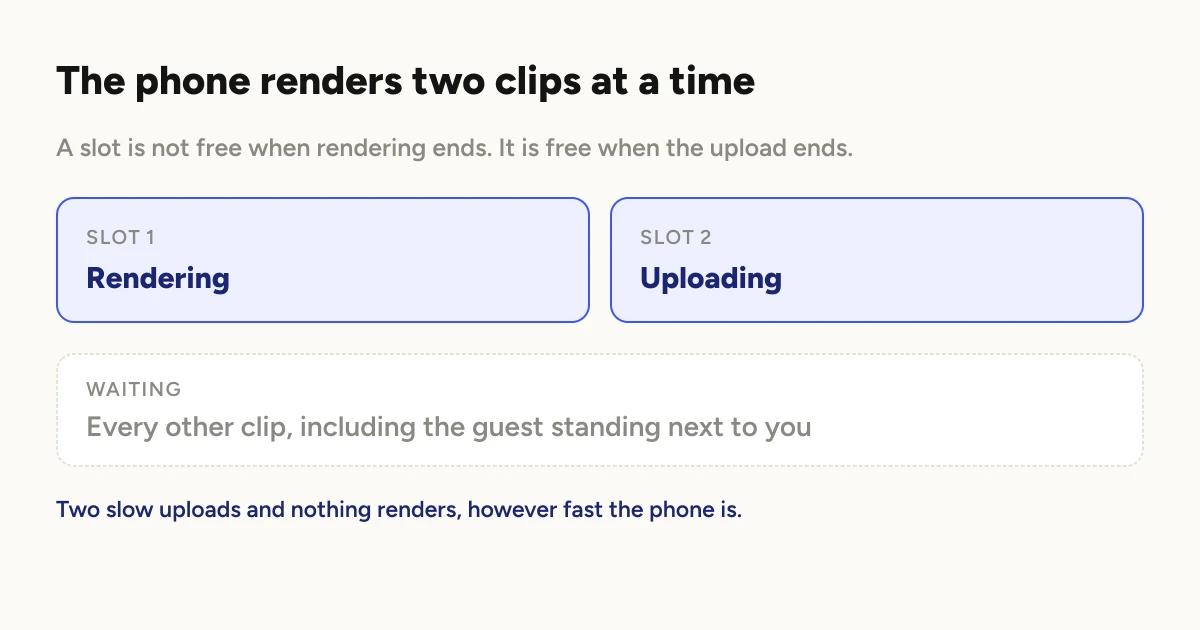
Logibooth renders two clips at a time. Not one, and not as many as the
phone can manage. Two.
Everything else waits in line behind them. When a guest finishes a take, the
clip joins the back of that line, and it moves up as the two ahead of it
finish.
This is deliberate. Rendering is the most demanding thing the phone does all
night, and running more than two at once makes every clip slower rather than
making the queue faster. It also leaves nothing for the camera, which still
has to record the next guest while the last one renders.
So the number that matters at a live event is not how fast one clip renders.
It is how long each of those two slots stays occupied.
The part that surprises people
A slot is not released when the clip finishes rendering. It is released when
the clip finishes rendering and uploading.
If you are delivering to the cloud, the upload happens inside the same slot.
A clip that rendered in moments can then sit there for a long time pushing
itself up a venue connection that is being shared with two hundred guests
posting to Instagram.
While it does that, it is holding a render slot. Two slow uploads and nothing
else renders at all, no matter how fast the phone is.
This is the single most common reason a queue backs up, and it looks exactly
like a slow phone from the outside. It is not. It is a slow upload wearing a
render slot.
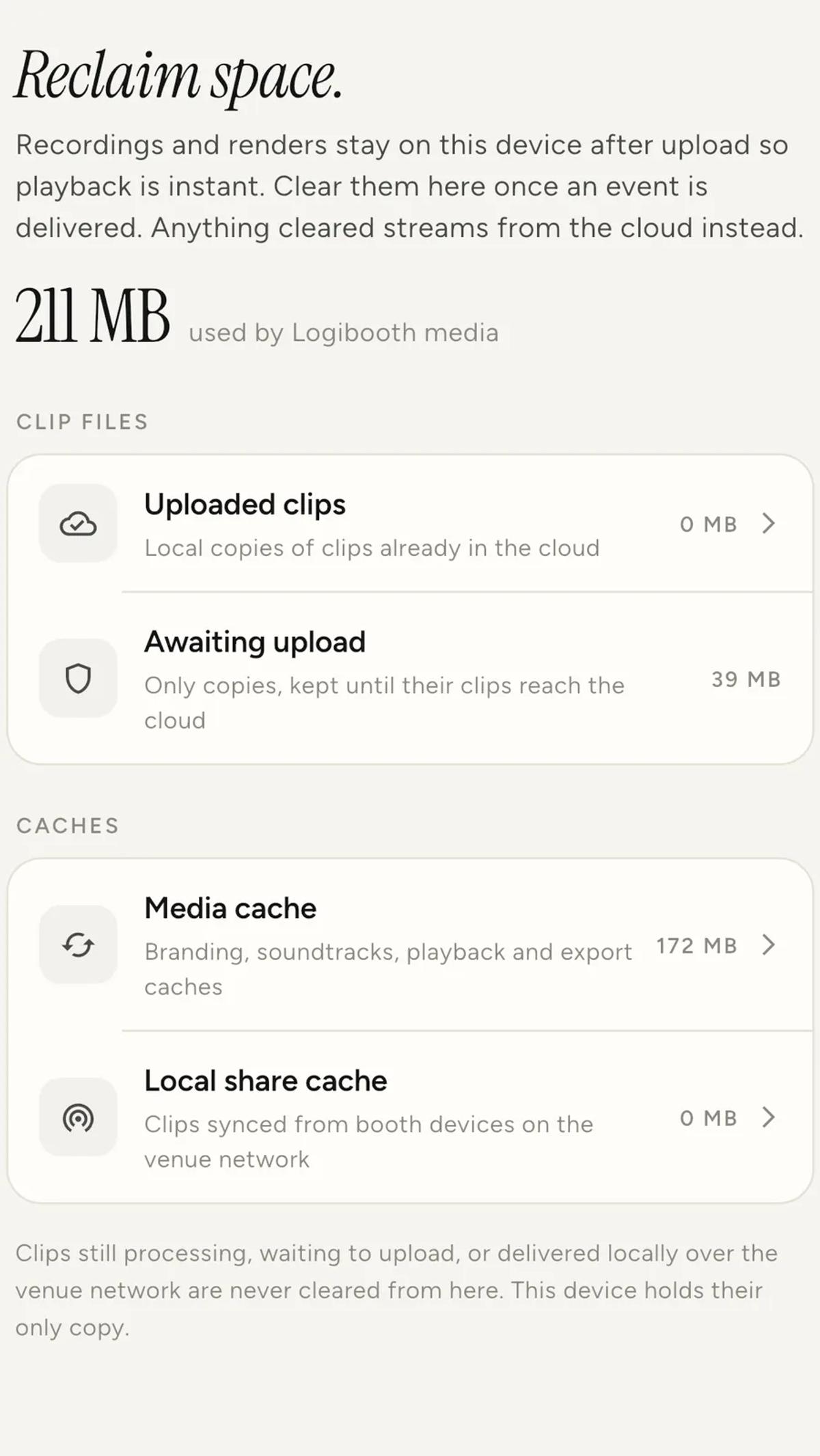
How to tell them apart. Watch what the clip says it is doing. If clips
move into uploading quickly and then sit there, the connection is your
problem. If they sit in rendering, it is genuinely the phone.
What can you do about it?
Test the venue connection before doors, not the morning of. Venue wifi at
9am and venue wifi at 9pm are different networks in every way that matters.
The guests are what changes.
Consider local delivery for the event. Clips are rendered on the phone
either way, so local delivery removes the upload from the critical path
entirely. Guests get their videos over your own network. See
cloud or local delivery
for the tradeoff, because there is one, and the main thing to know is that
locally delivered clips are not uploaded for you afterwards.
Set up a Share Station. It gives guests somewhere to collect clips that
is not the booth itself, which keeps the platform free even when delivery is
slower than recording.
Setting up a Share Station
covers it.
Bring your own connection if the event depends on cloud delivery. A
hotspot you control beats a venue network you do not.
What makes one clip slower than another?
Render time is not fixed. The things that move it:
Length of the take. More footage in means more frames to process.
What is baked in. An intro, an outro, an overlay and a soundtrack are all
composited during rendering. A clip with all four takes longer than a bare
one. This is worth knowing when you build a look for an event, because you
are choosing throughput at the same time.
The effect. Effects that slow footage down are doing more work than
effects that do not, because slow motion means generating more output frames
than the camera recorded.
What else the phone is doing. Recording the next guest while two clips
render is the phone's busiest possible state, and that is also the exact
state a busy booth lives in all night.
None of these are worth guessing at. Run your actual event setup, with your
actual intro and overlay and effect, and time it. Your numbers on your phone
are the only ones that mean anything, and any figure published without that
context is somebody's guess.
Does a second device fix it?
A second device helps. It does not help the way most people expect.
Each device has its own queue and its own two slots. A second device does
not reach over and take work off the first one. It renders what it recorded.
So a second device doubles capacity only if it is also recording. Standing a
spare phone next to a busy booth does nothing for the backlog on the booth
phone. Running a second booth, or moving recording to the second device while
the first one drains, is what changes the number.
Managing your devices
covers how to add one and assign it.
Two things to do before the event
Open the app online once, before you leave. The app checks your plan when
it bakes branding into a clip. That check resolves instantly when it has been
online recently. On a device that has never been online, it waits, and it
waits while holding a render slot. This is also how a paid operator ends up
with a watermark on a fresh install that has never connected. One launch on
your home wifi avoids both.
Expect the screen to stay on. The app holds the screen awake while there
is anything left in the queue, because a sleeping phone does not render. Plan
power accordingly. A booth phone on a long event wants to be plugged in.
What if the queue is already stuck?
Let it drain before adding to it. Pausing recording for a few minutes
does more than any setting you can change mid-event.
Check what the stuck clips are doing. Uploading and rendering are
different problems with different fixes, and the app tells you which one you
have.
Failed clips retry themselves once. If something failed rather than
stalled, the app gives it another attempt on its own each time it starts, so
a single failure is not something to panic about mid-event.
Do not force quit the app to hurry it along. Rendering stops when the app
does. There is a
guide to recovering clips
if you end up there anyway.
The honest summary
Most queue problems at 360 booths are delivery problems wearing a costume.
The phone renders two clips at a time, the upload lives inside that same
budget, and a venue network at peak is the slowest part of the whole chain.
Decide how clips are getting to guests before the event starts, because it is
the one choice that changes throughput more than anything you can adjust once
the room is full. Offline mode exists for exactly
this reason.
Keep reading
How many clips does a 360 booth event produce?
A rough guide from Logibooth's own numbers. A typical event records a few dozen clips, and the busiest run into the hundreds. Here is what moves it.
Read more →
Choosing a 360 photo booth overlay template
Picking a template is quick. Picking one whose words still read on a spinning clip, and still show once a guest posts it, takes a little more thought. Here is what to look for.
Read more →
Running a 360 booth outdoors
Every indoor problem is about too little light. Outdoors the problem flips. The sun is one enormous light you cannot move, and part of every spin points straight at it.
Read more →